Adjustments can be made against to consolidated e-Invoices by issuing a credit note. Here are the steps to create and submit Credit Note for a validated Consolidated e-Invoice in the Biztory system.
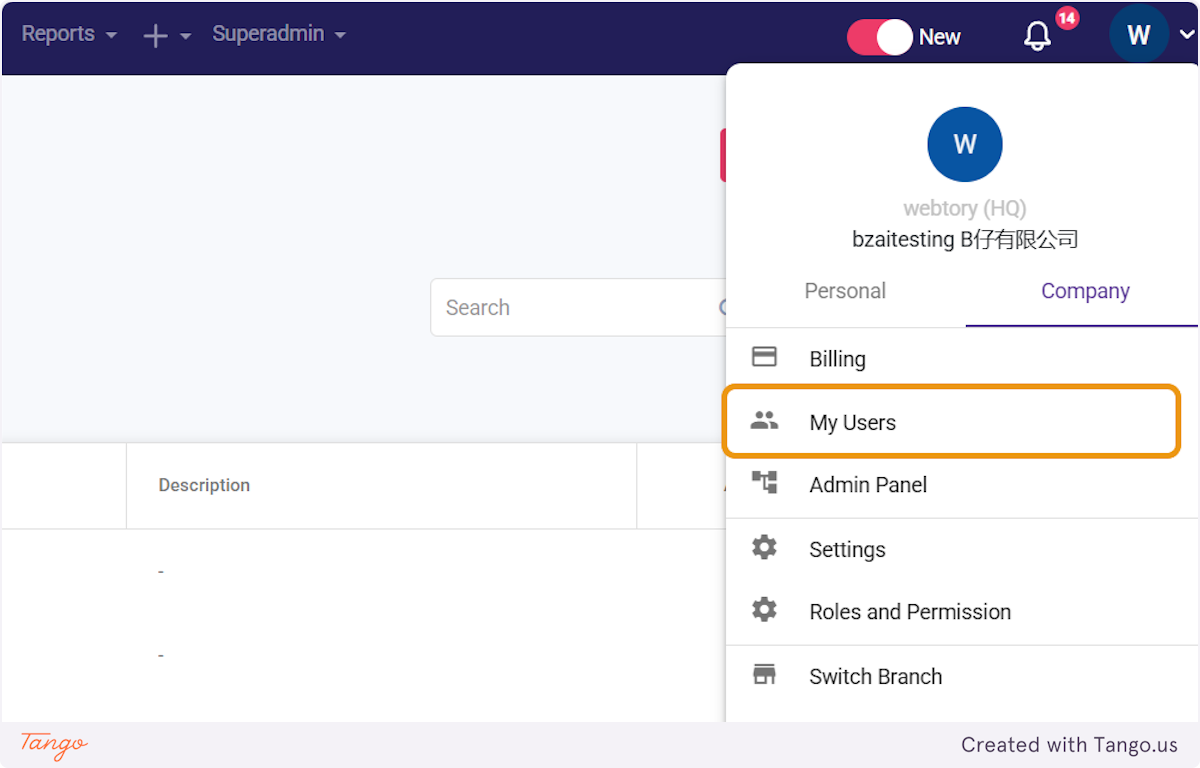
1. Click on your profile picture and select Settings on the company tab
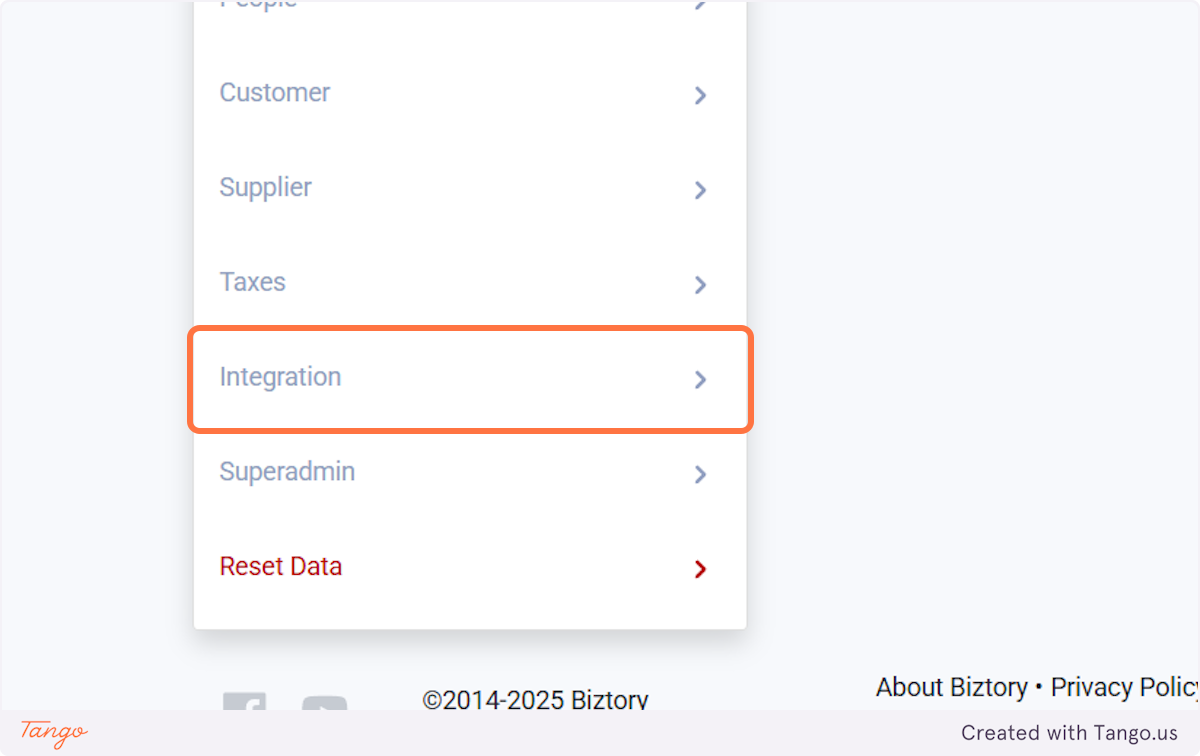
2. Click on Integration
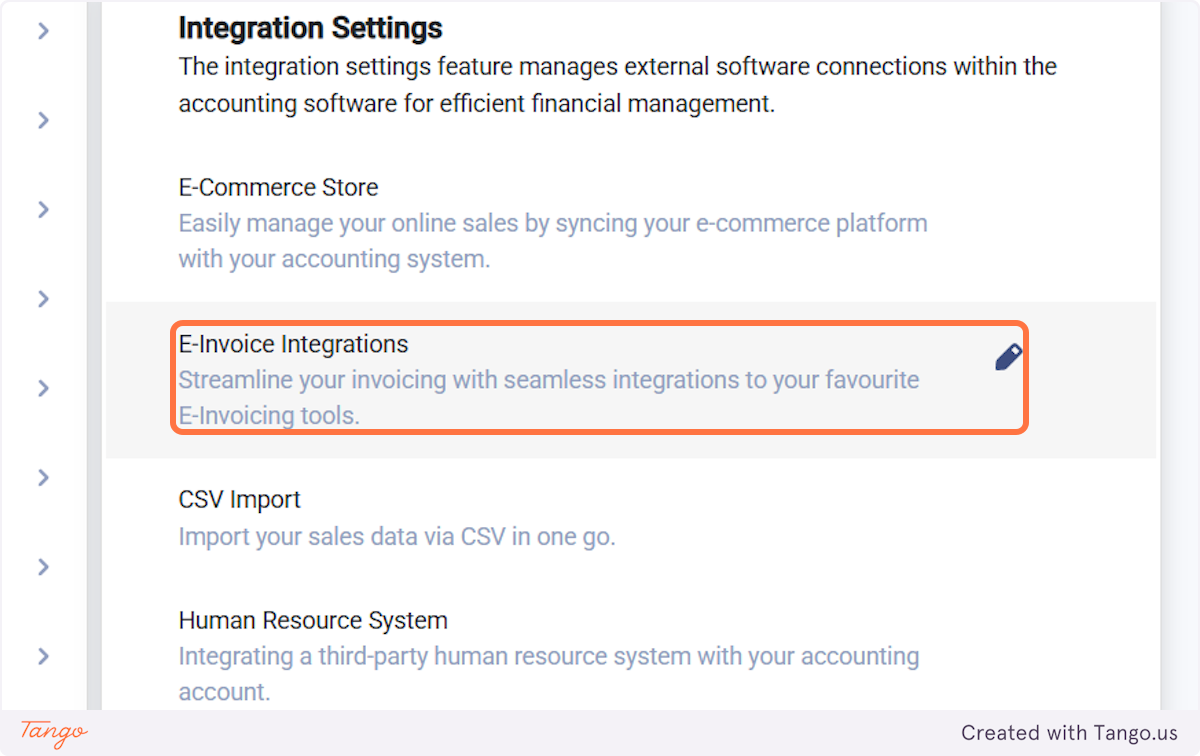
3. Click on E-Invoice Integrations
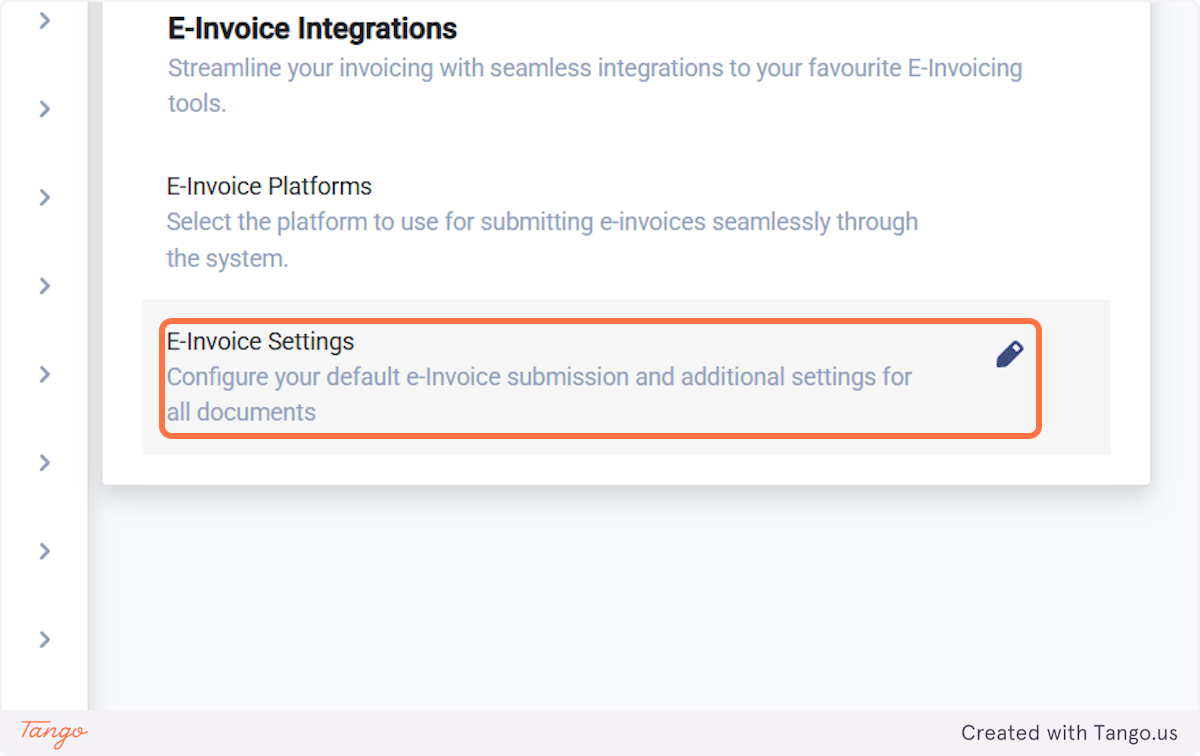
4. Click on E-Invoice Settings
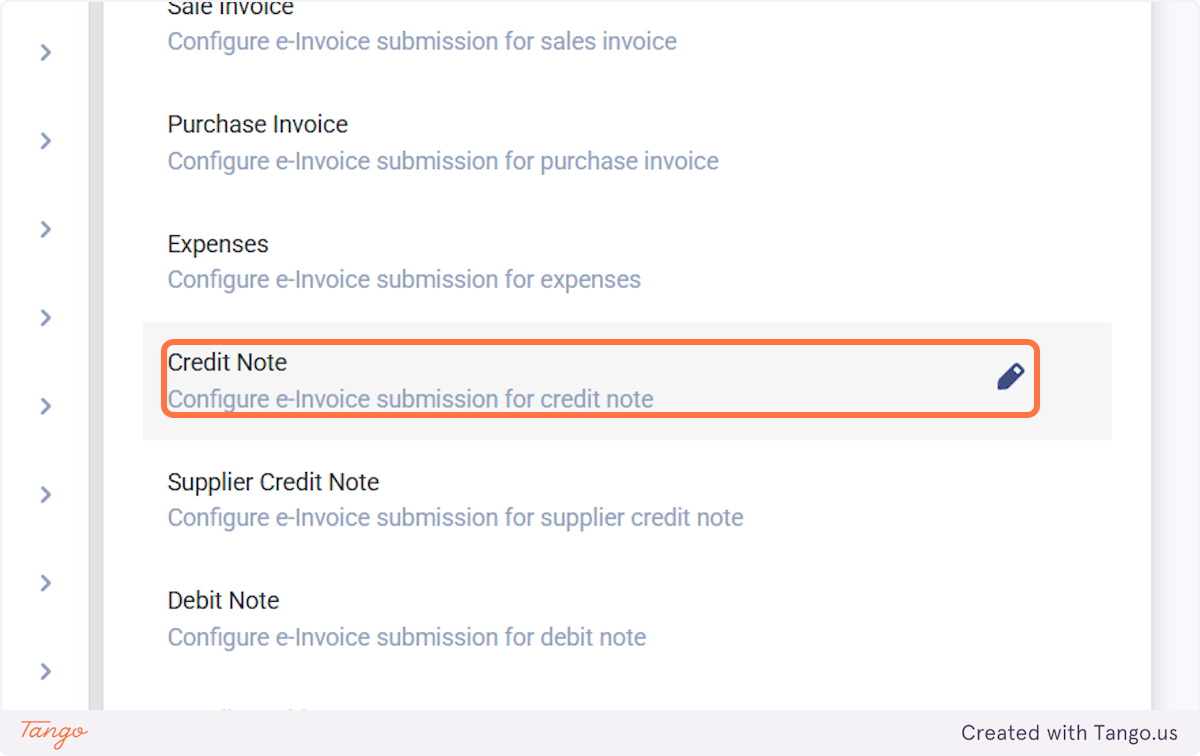
5. Click on Credit Note
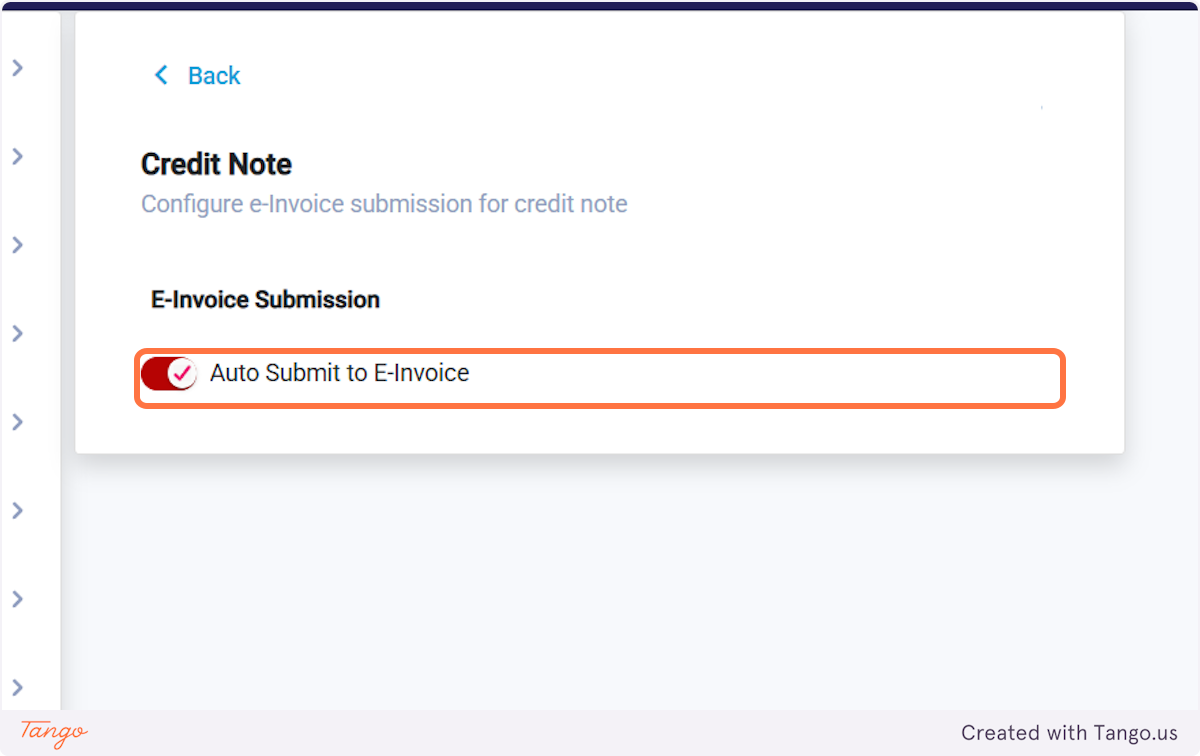
6. Enable Auto Submit to E-Invoice (Optional)
(Every credit note created will be auto-submitted to e-Invoice. Once the e-invoice has been validated, customer, product, invoice number, and invoice date cannot be edited. If don't want CN to auto submit can leave it disabled)
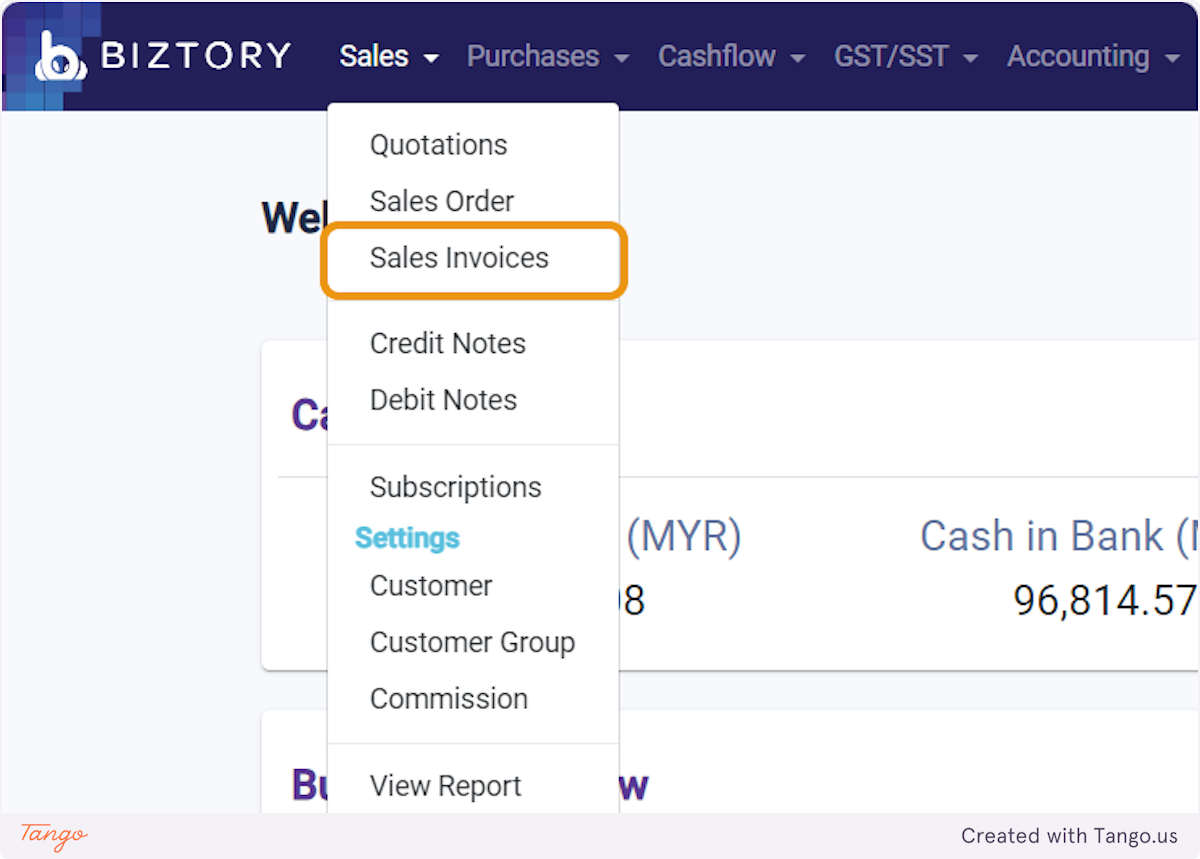
7. Click on Sales and select Sales Invoice
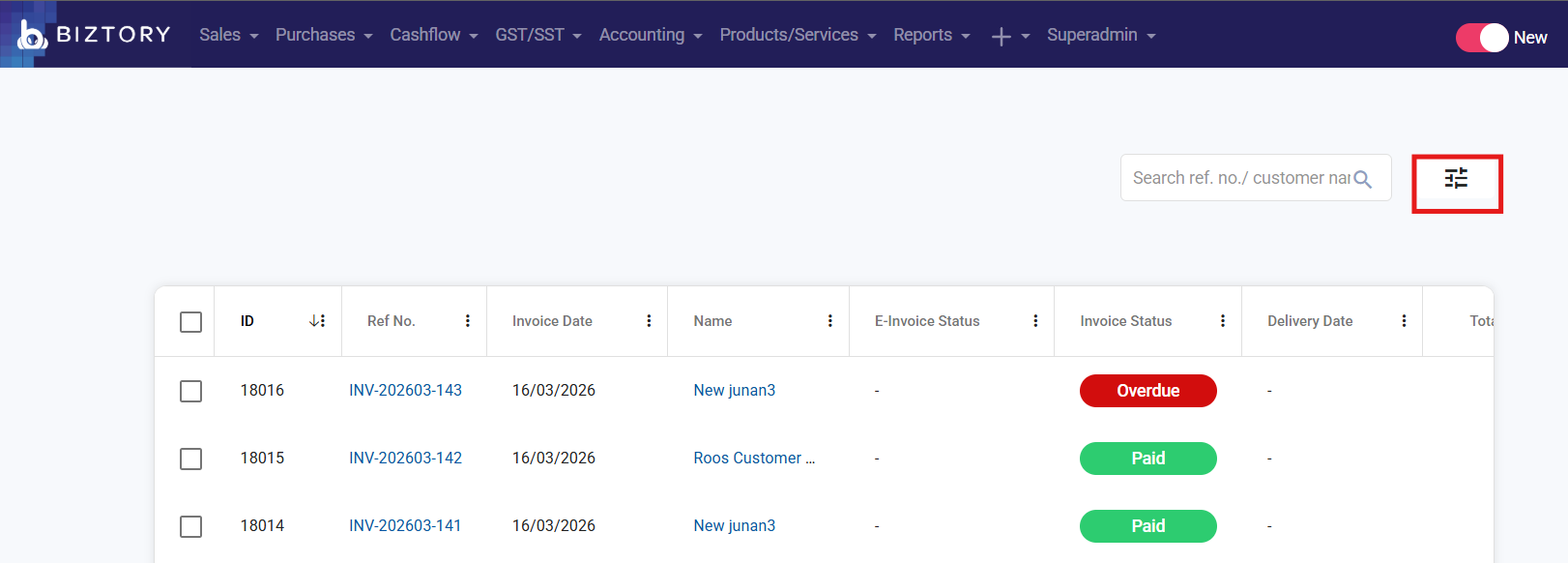
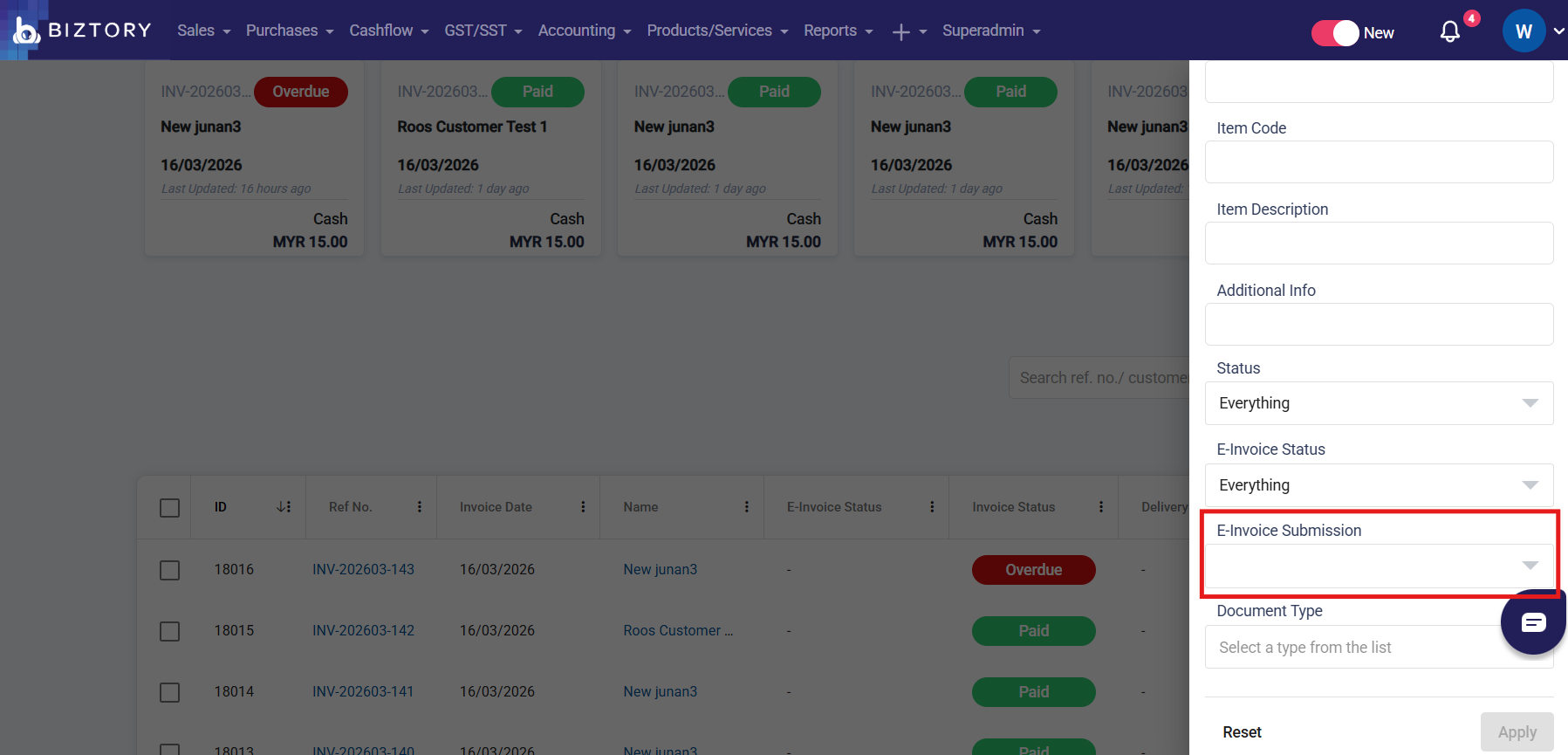
8. Click on the Filter button.
9. Set the E-Invoice Submission type to "Submit as Consolidated" and Apply
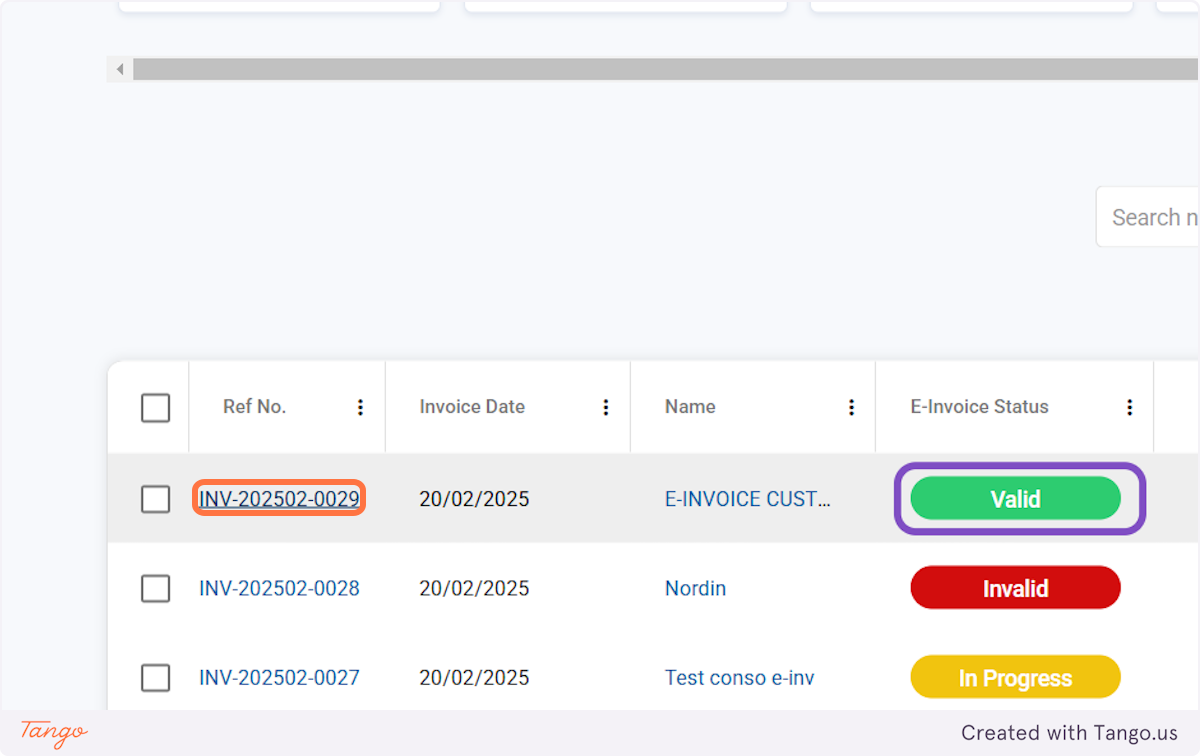
10. Click on the invoice that has been validated
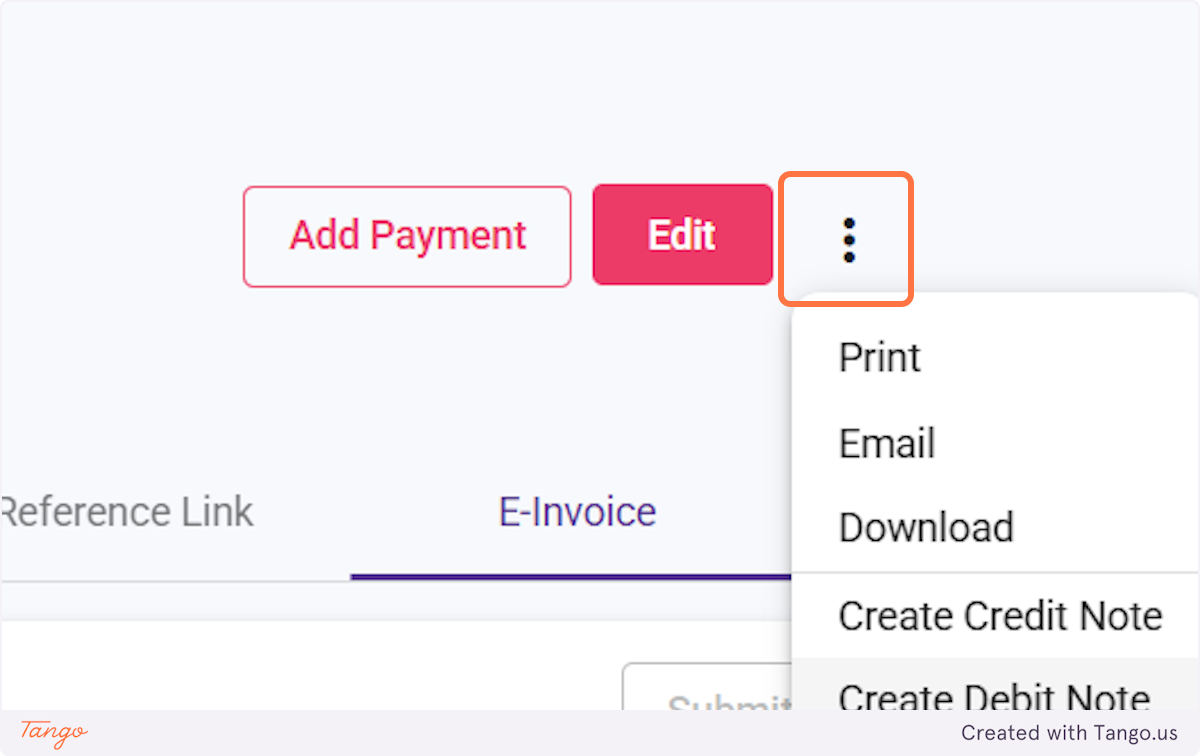
11. Click on 3 dots
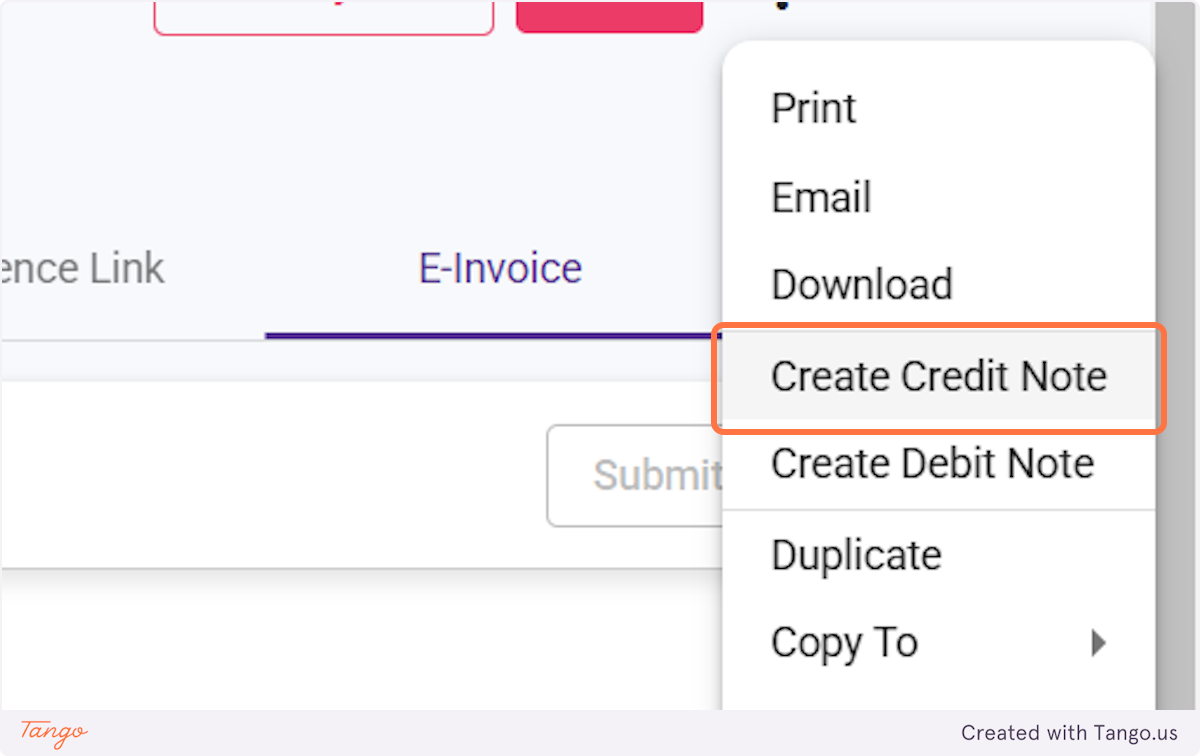
12. Click on Create Credit Note
13. Fill in the info
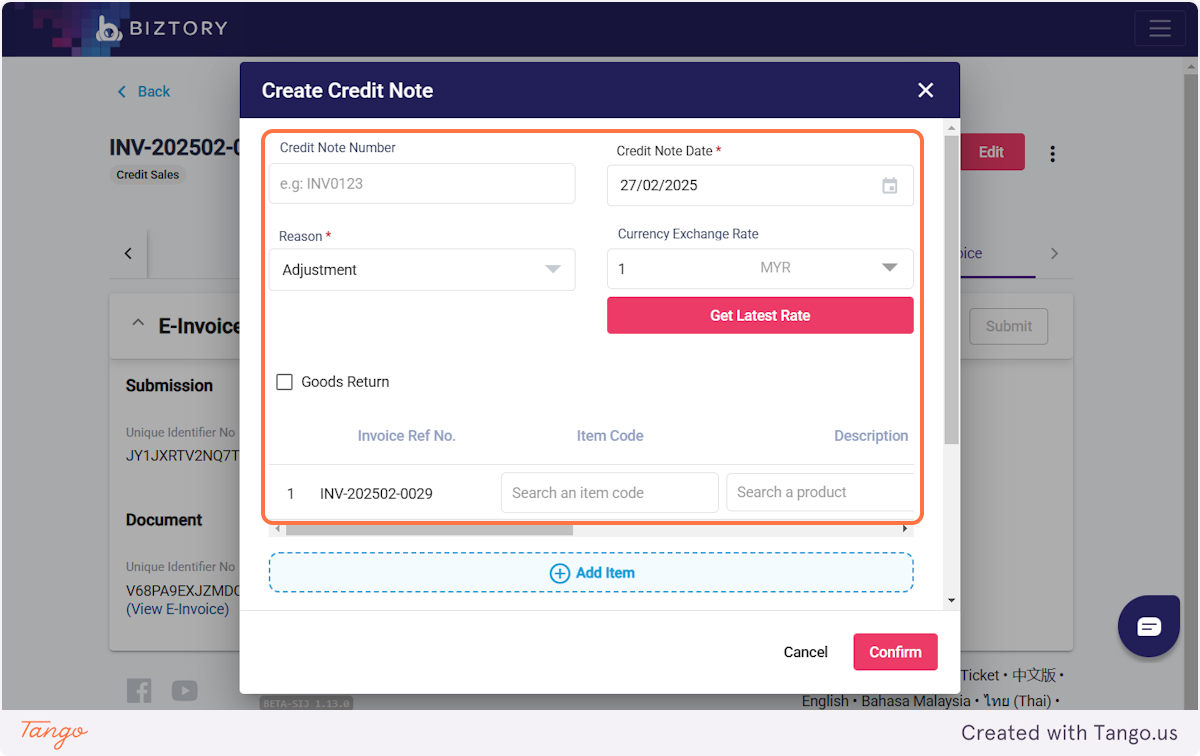
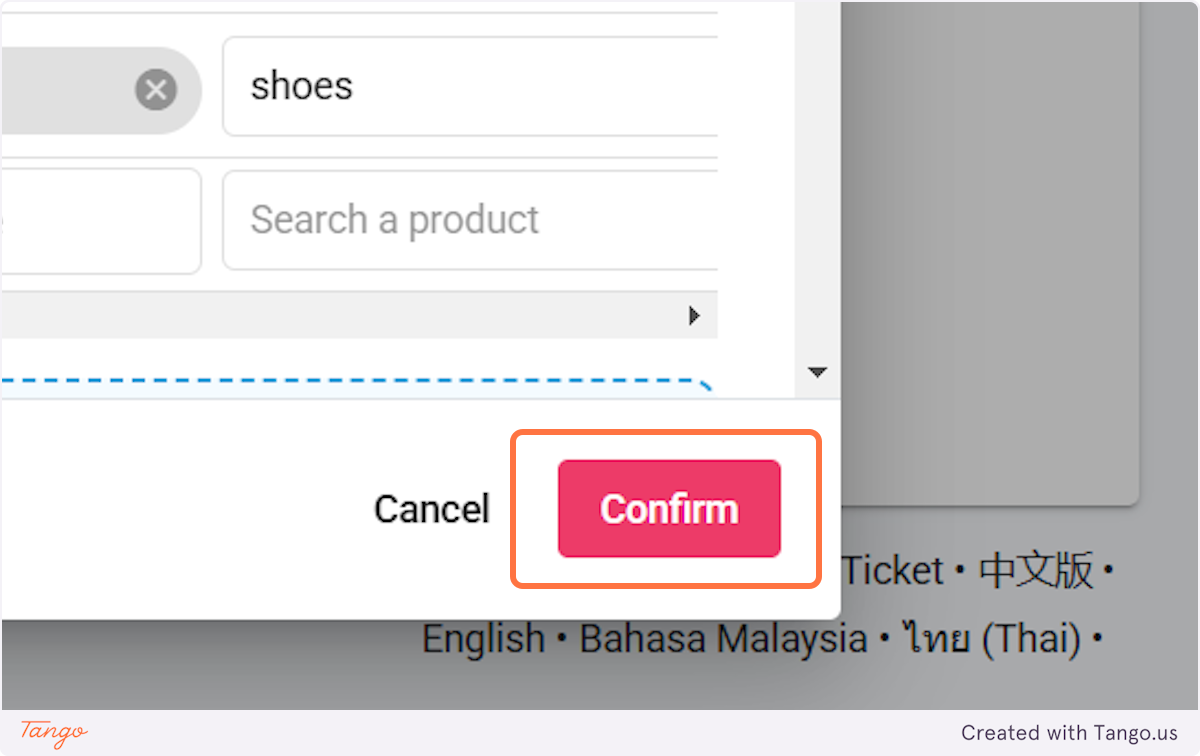
14. Click on Confirm
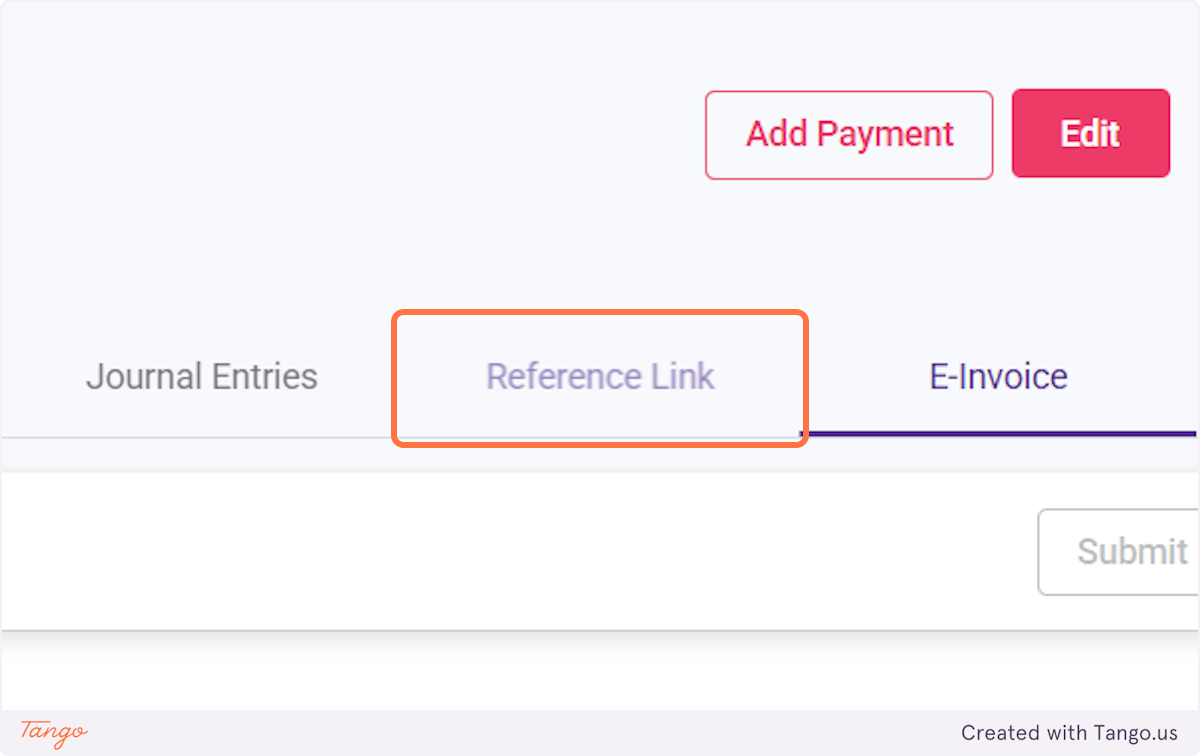
15. Click on Reference Link
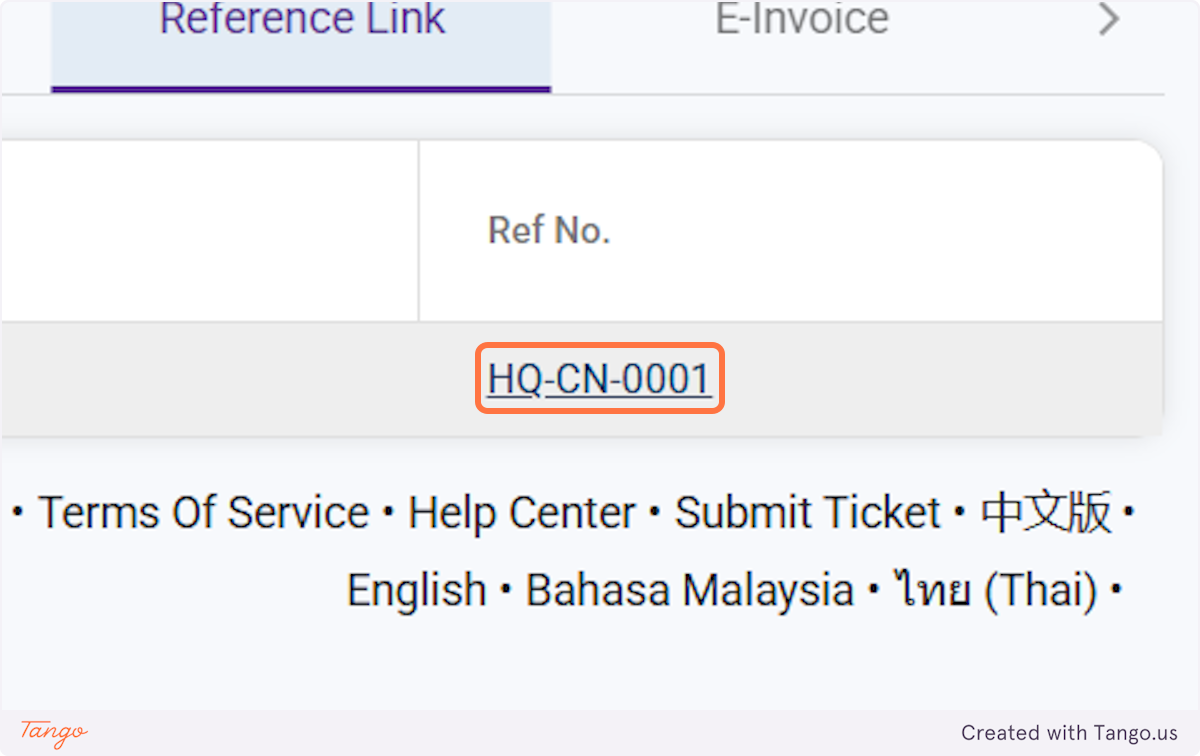
16. Click on the credit note reference number
17. Click on E-Invoice
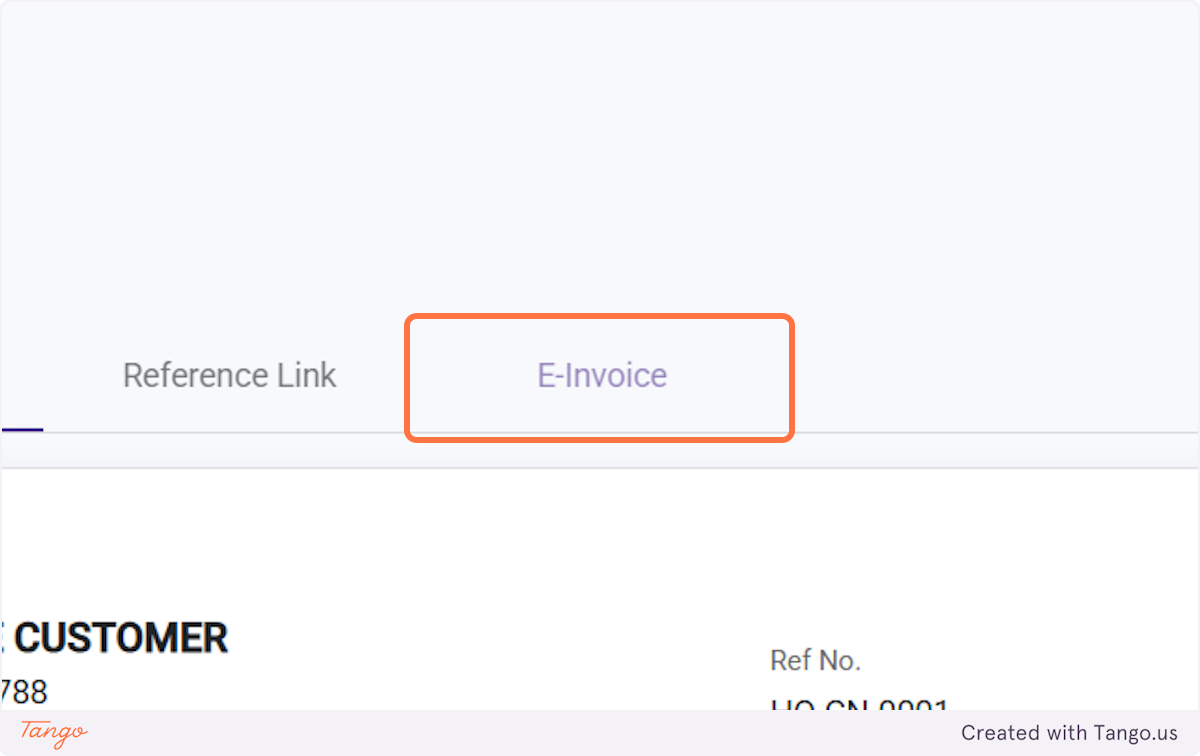
18. Click on Submit
(If auto submit to e-invoice for credit note is enabled, you may skip this step)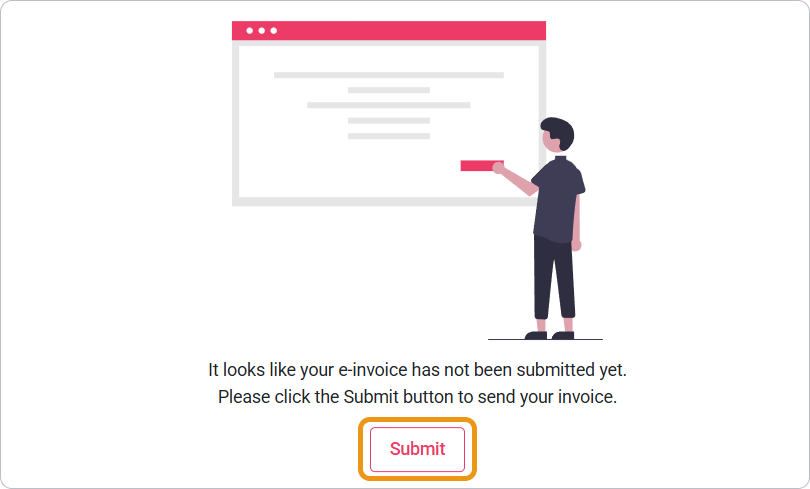
19. Click on (View E-Invoice)
(You can only view the e-invoice once the document status becomes 'Valid.' If the status shows 'In Progress,' please wait up to 72 hours for the final status update. You can refresh within the 72-hour period.)
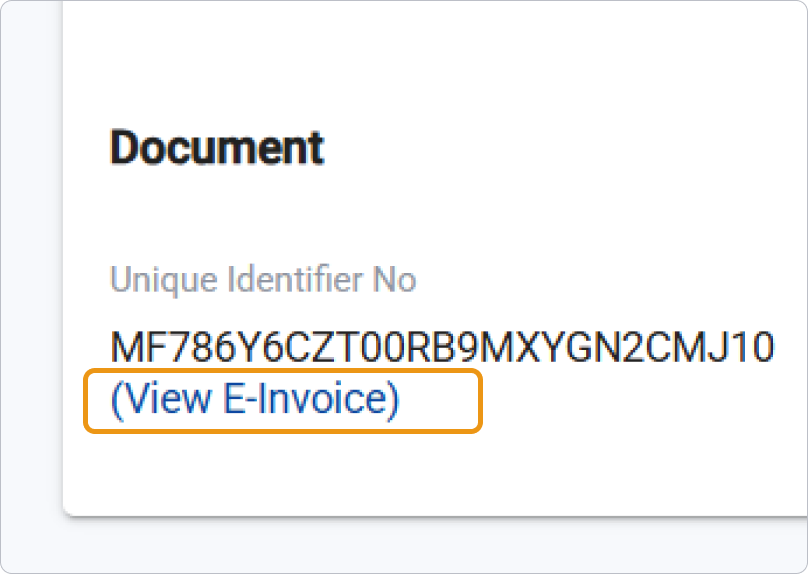
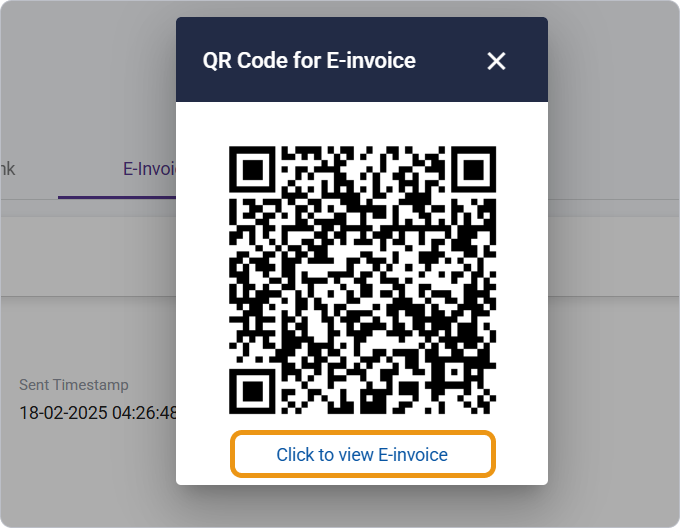
20. Scan QR Code or Click to view E-invoice
Was this article helpful?
That’s Great!
Thank you for your feedback
Sorry! We couldn't be helpful
Thank you for your feedback
Feedback sent
We appreciate your effort and will try to fix the article