How to Create Supplier Credit Note Adjustment (New Version)
1. Go to Purchases > Purchase Invoices.
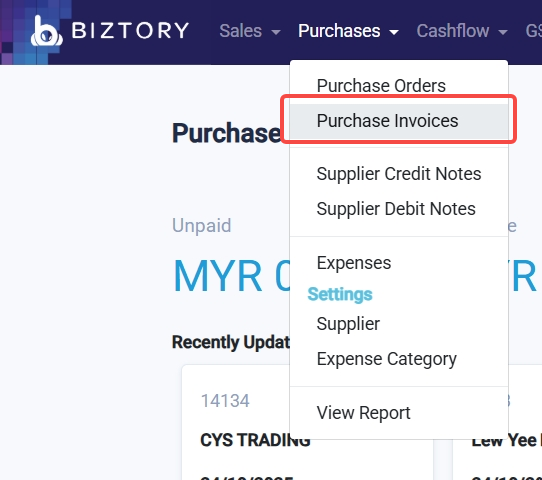
2. Open the Purchase Invoice (PI).
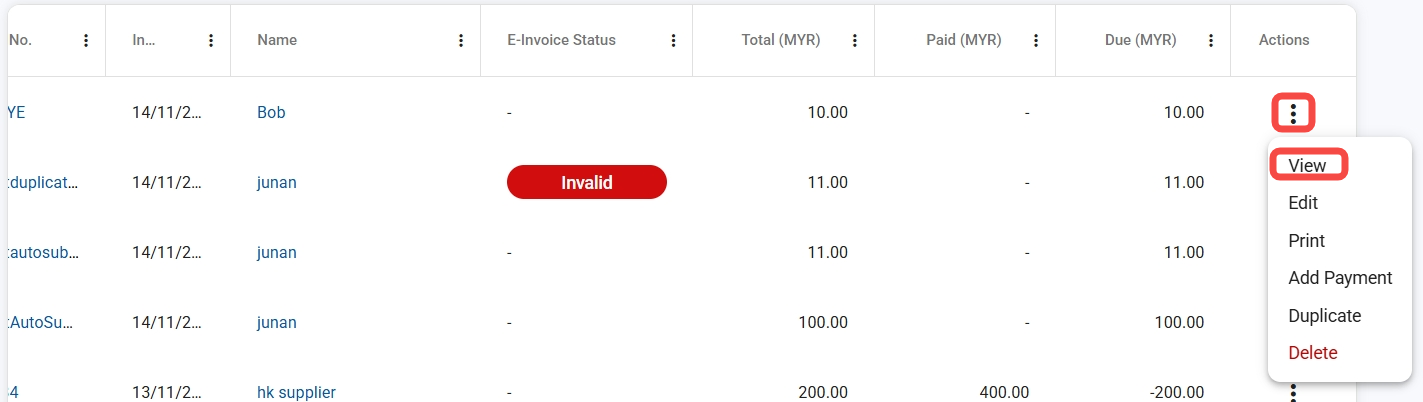
You can open the invoice in two ways:
Method A: Click on the PI reference number directly.

Method B: Click the three dots (⋮) next to the invoice and select View.
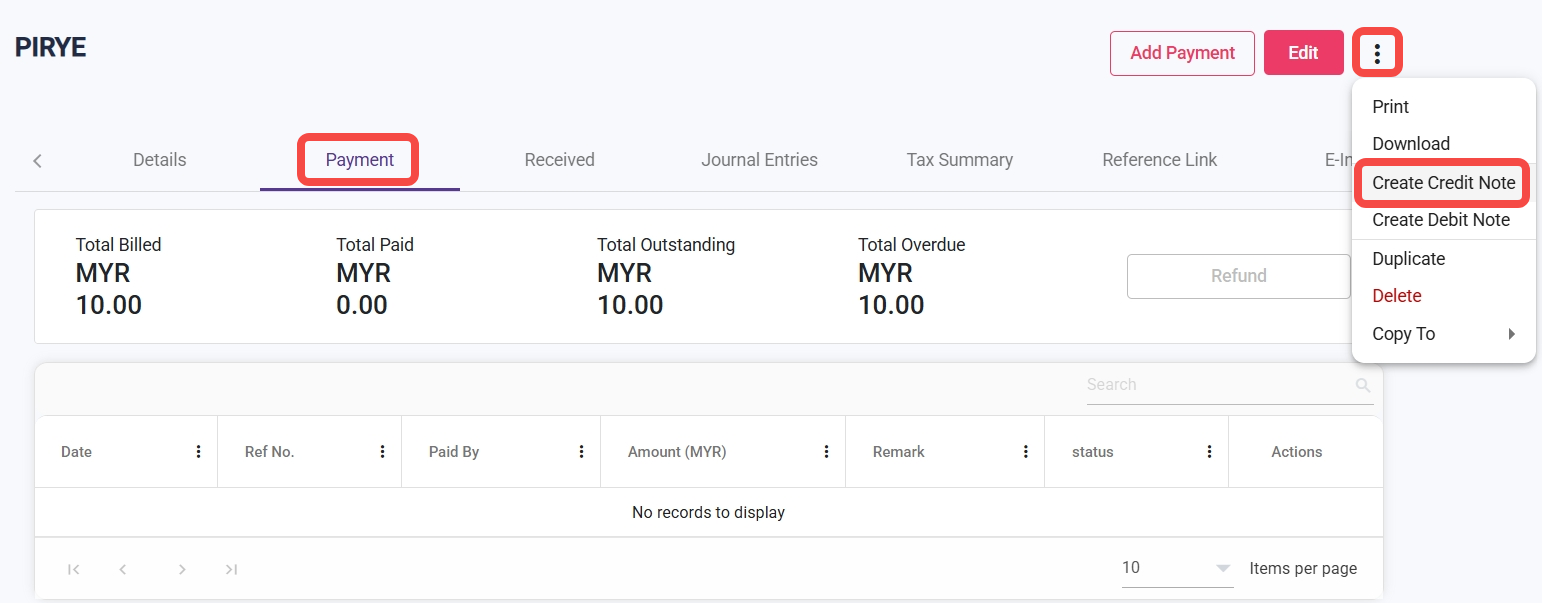
3. Go to the Payment tab, click the three dots (⋮), and select Create Credit Note.
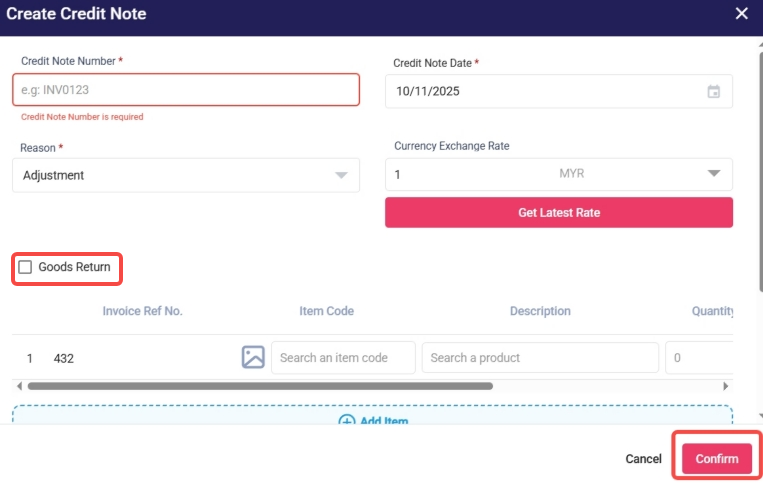
4. Fill in the required information and click Confirm.
If the transaction involves a Goods Return, please tick the Goods Return checkbox (optional).
5. A green Notification will appear once the Credit Note is created successfully.

6. Go to the Payment tab to check the Credit Note Adjustment.
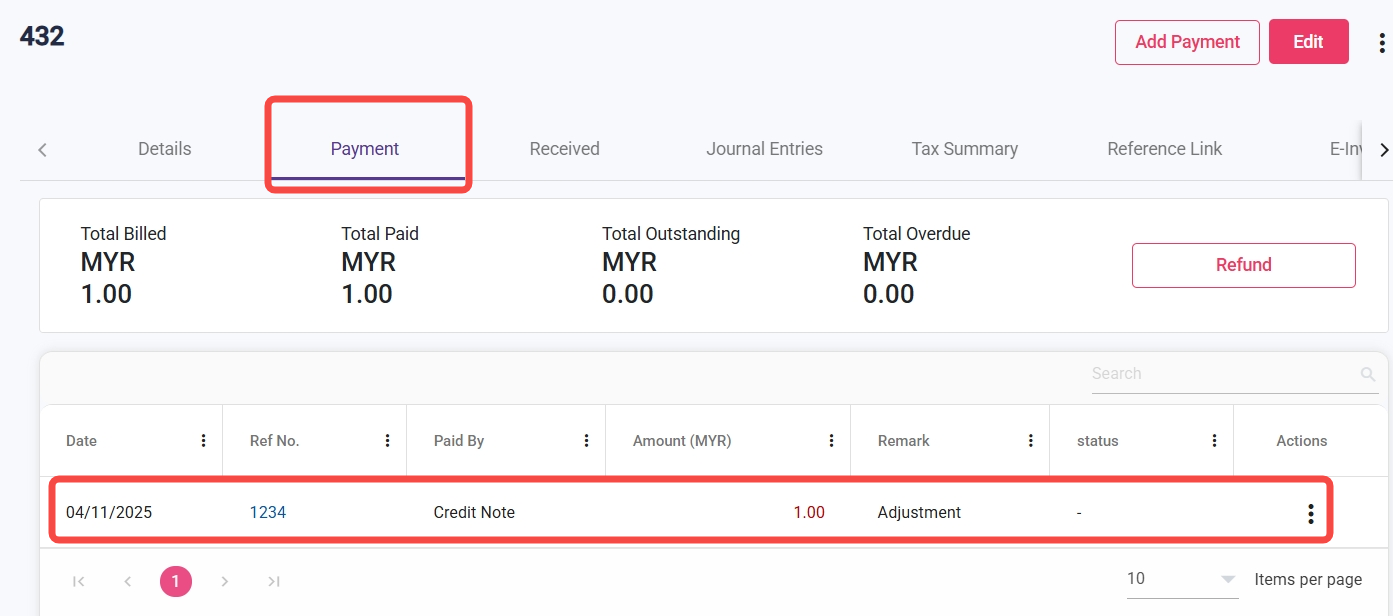
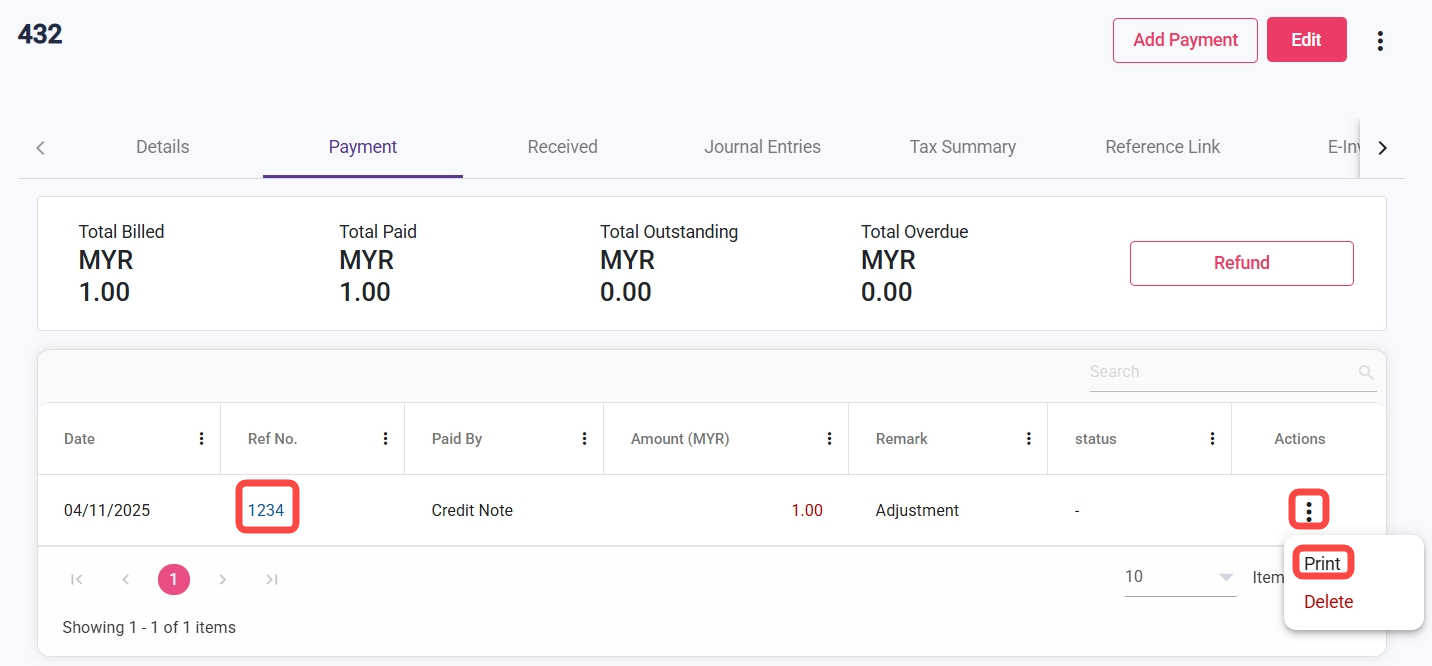
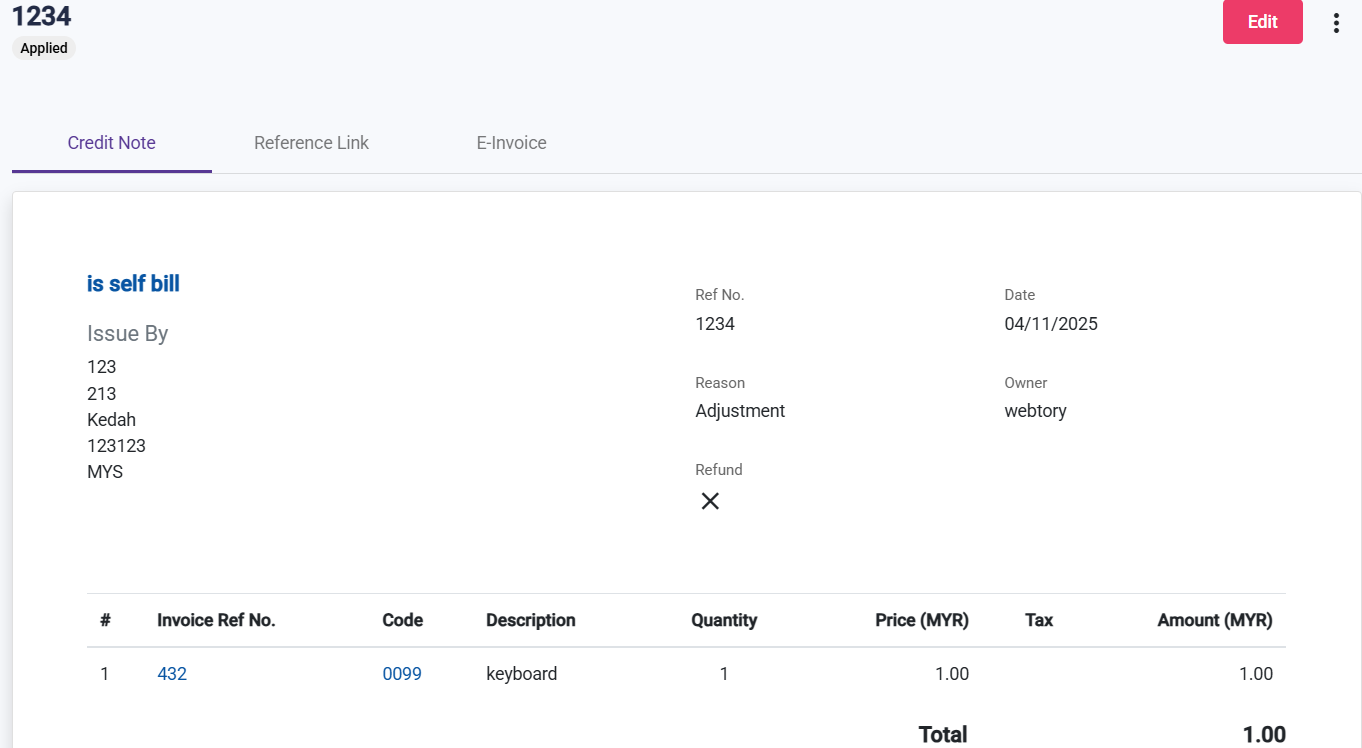
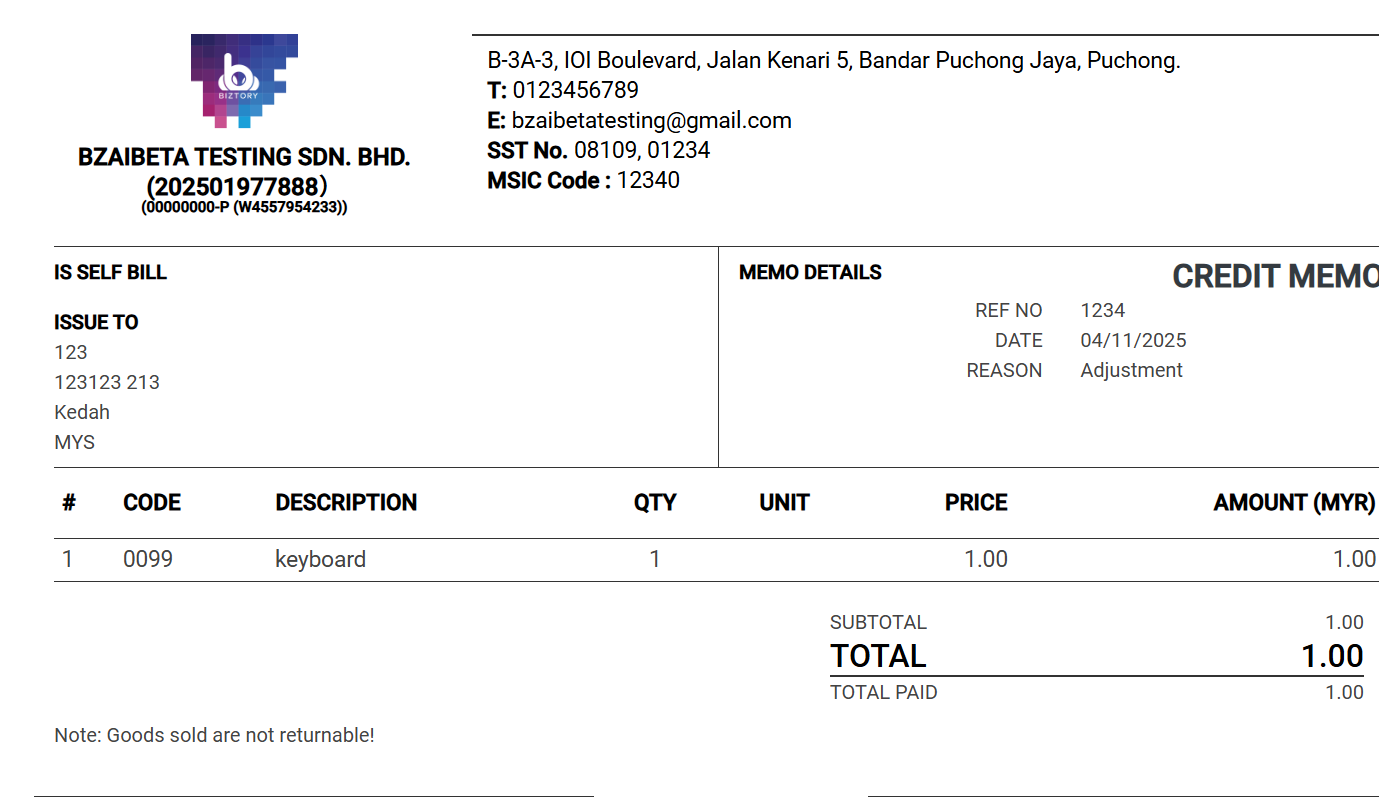
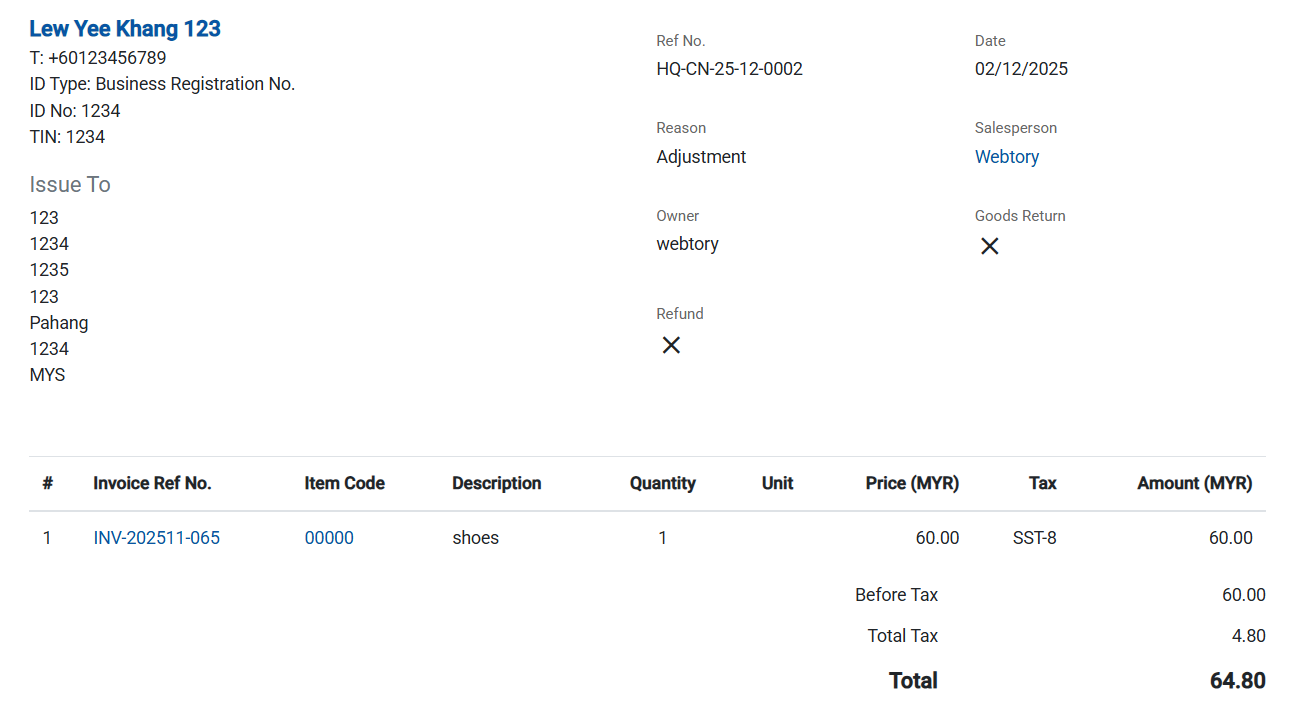
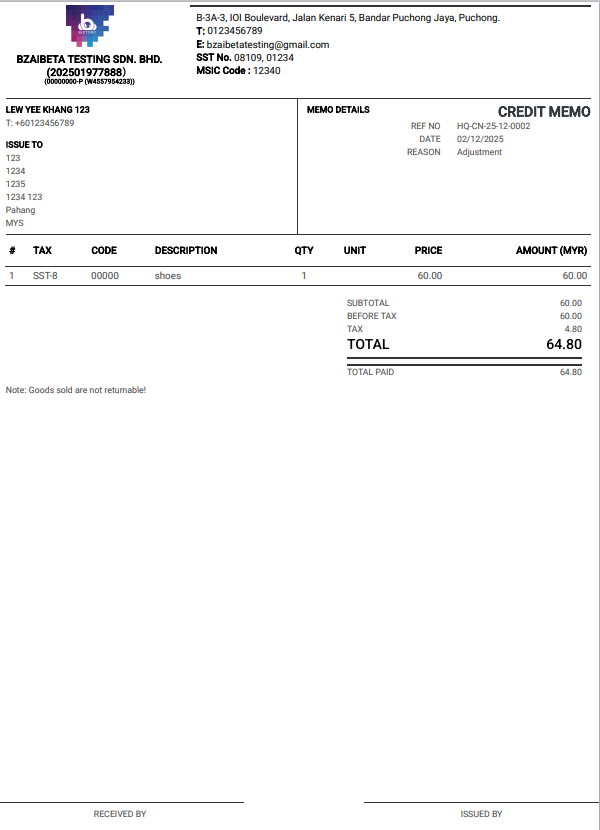
7. Click the Credit Note reference number or Print to view the CN adjustment details.
1. Follow the same method above for Sales Invoice, and the Credit Note will be shown.
Was this article helpful?
That’s Great!
Thank you for your feedback
Sorry! We couldn't be helpful
Thank you for your feedback
Feedback sent
We appreciate your effort and will try to fix the article