How to Access LHDN Portal via Invoice QR Code
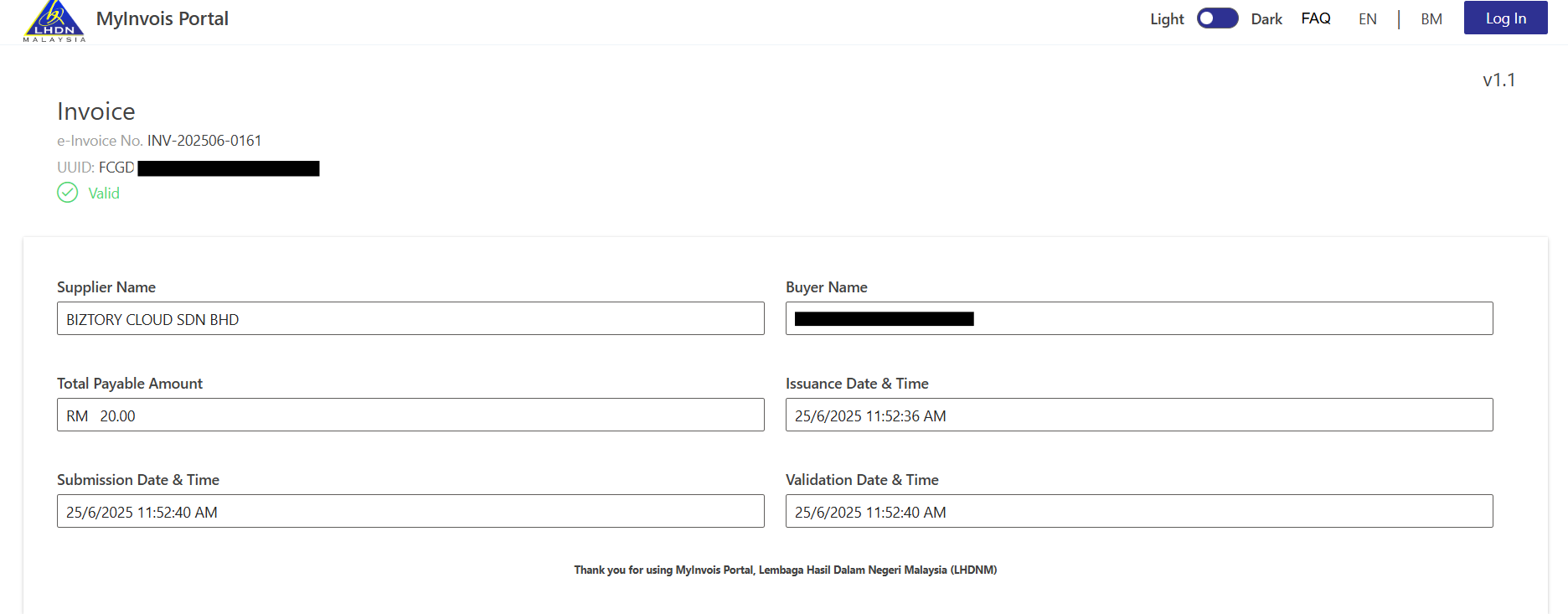
Users can access the LHDN public portal by scanning the QR code displayed on the invoice. The QR code redirects directly to the invoice validation page on the LHDN system, allowing users to view and verify the e-Invoice details easily.
1. Click on Profile and go to Settings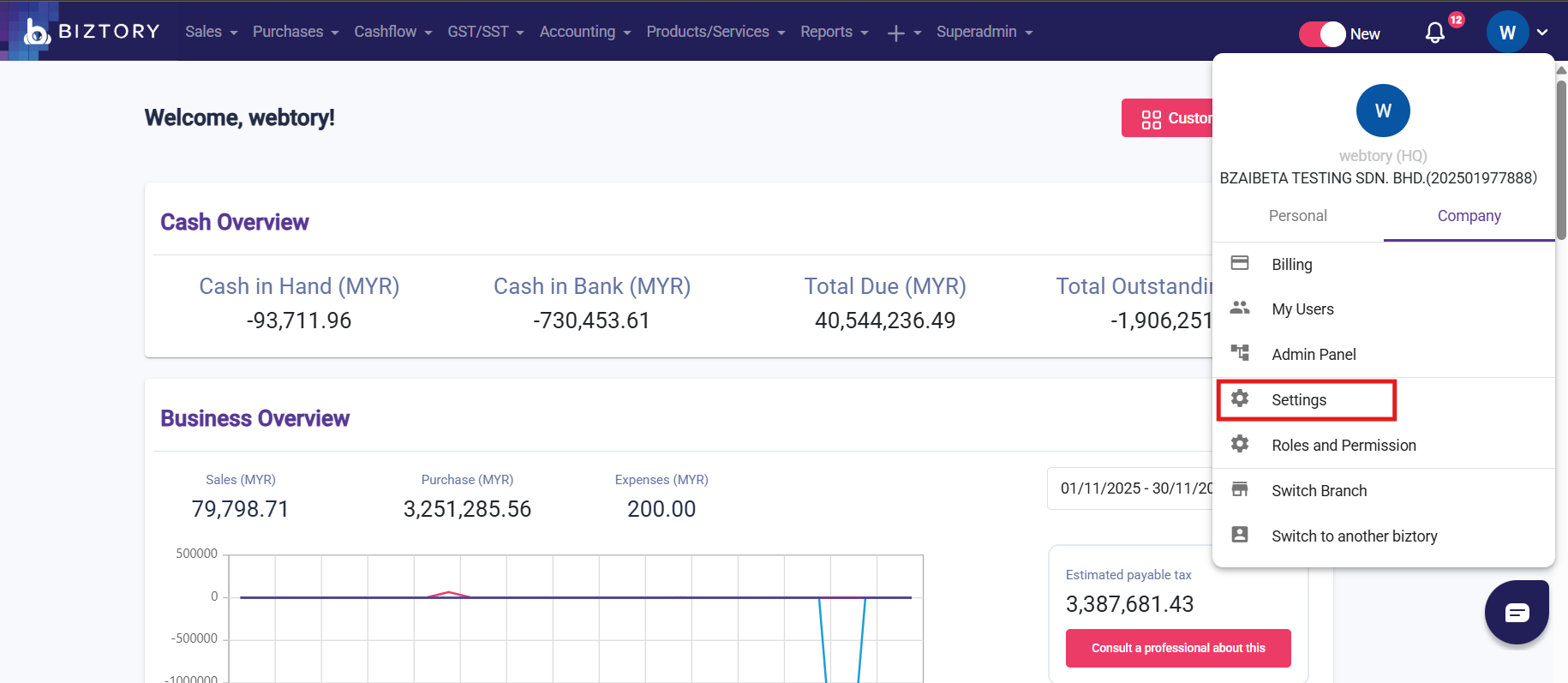
2. Click on Sales and Preference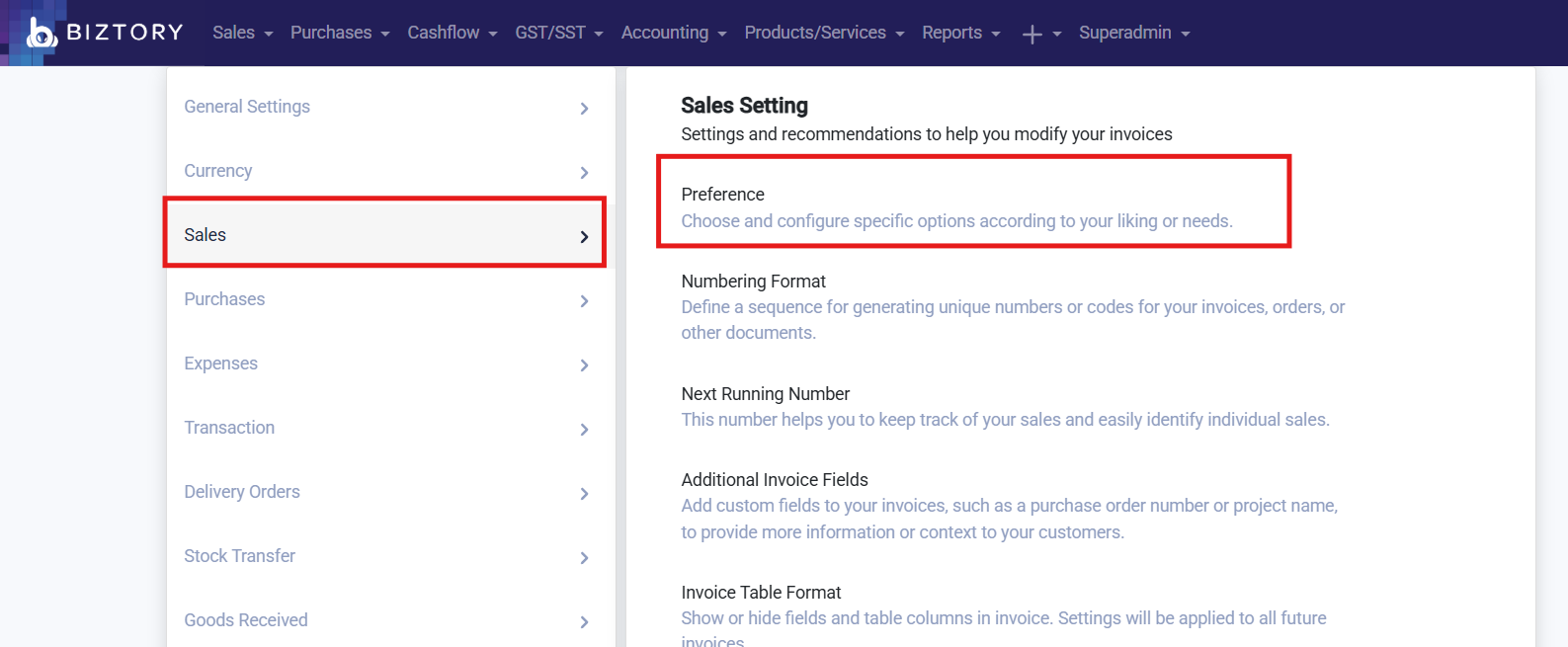
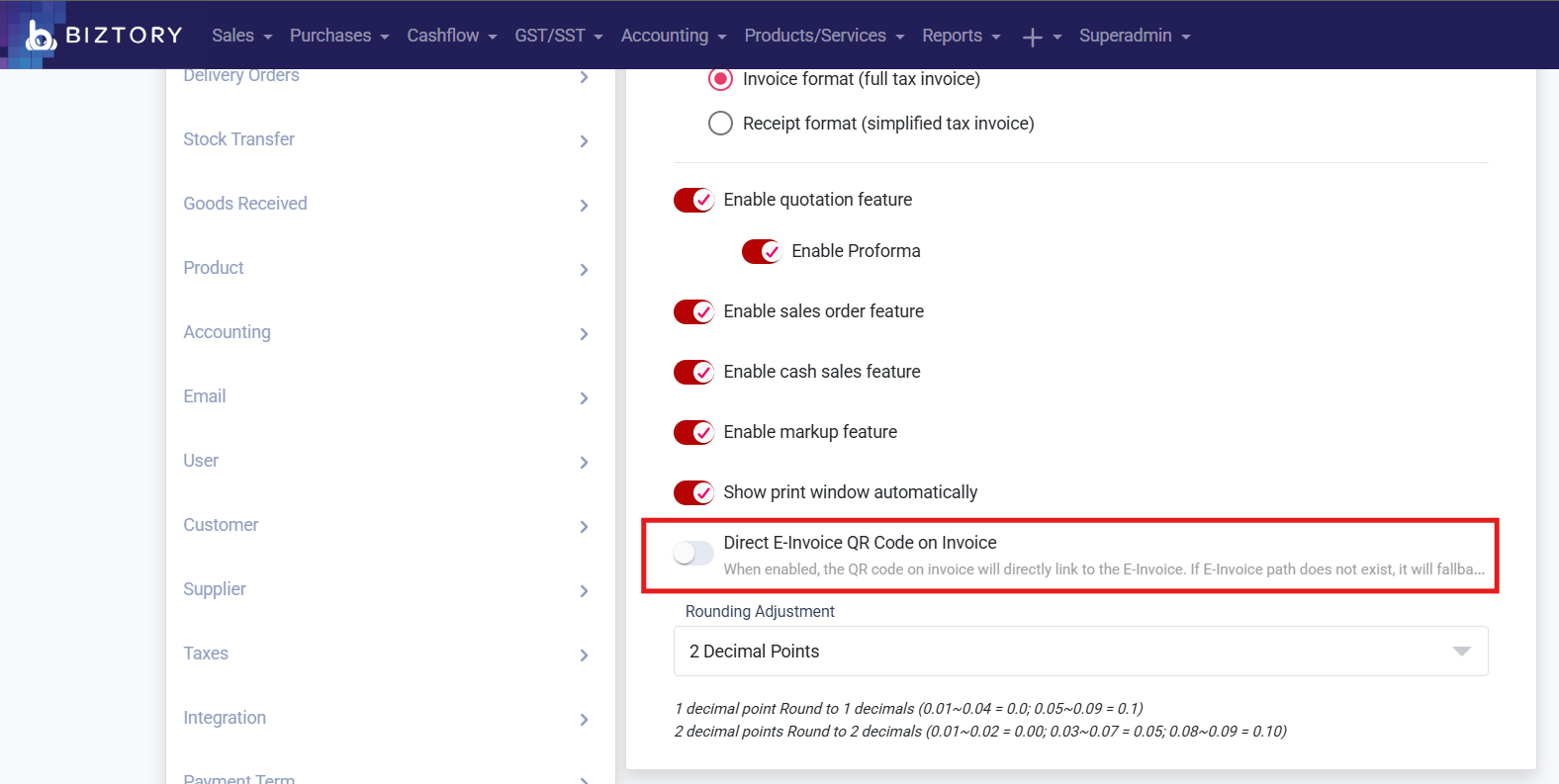
3. Enable "Direct E-Invoice QR Code on Invoice"
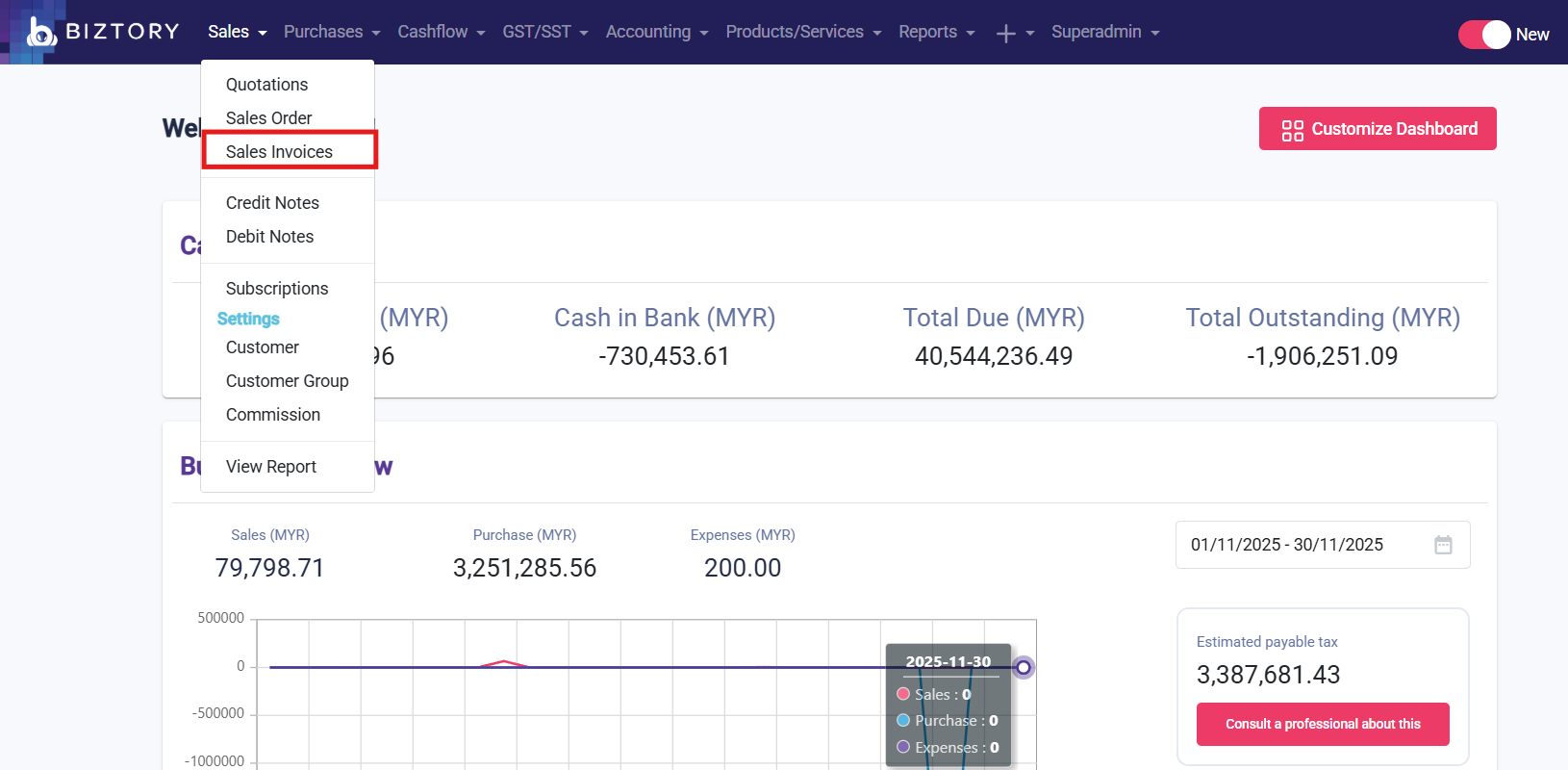
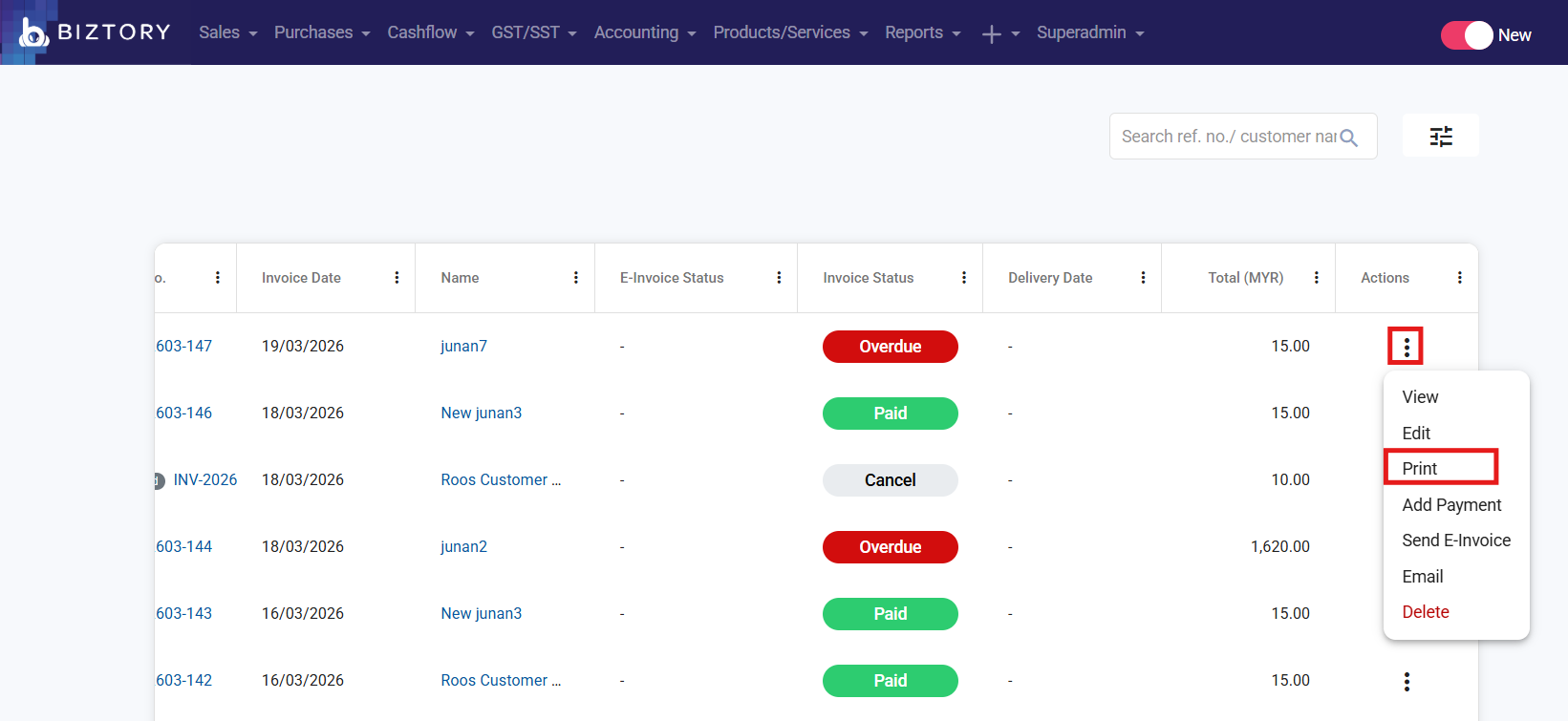
4. Go to Sales Invoices
5. Search the Invoice and click the 3 dots > Print.
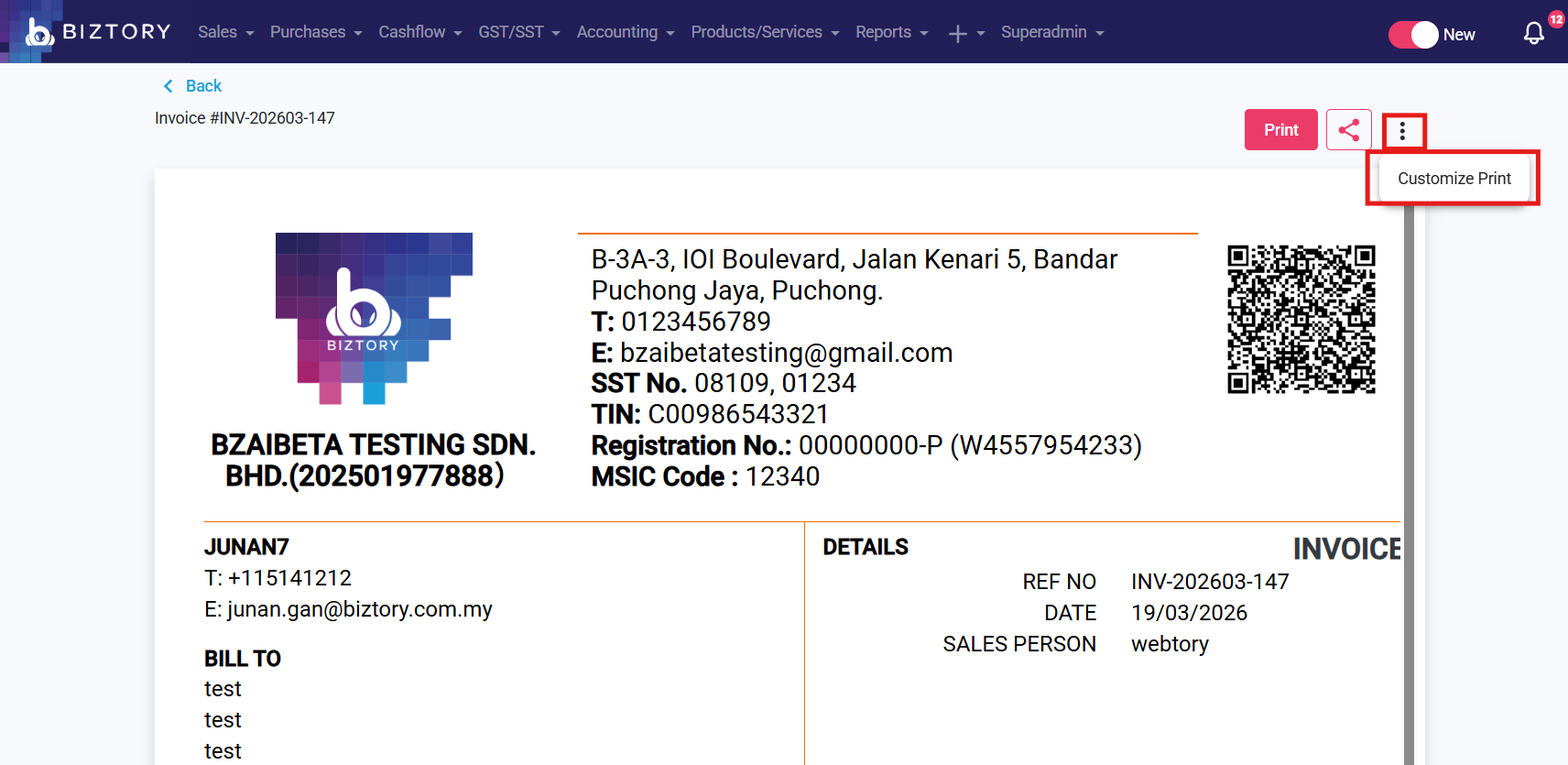
6. Click on the 3 dots and go to Customize Print
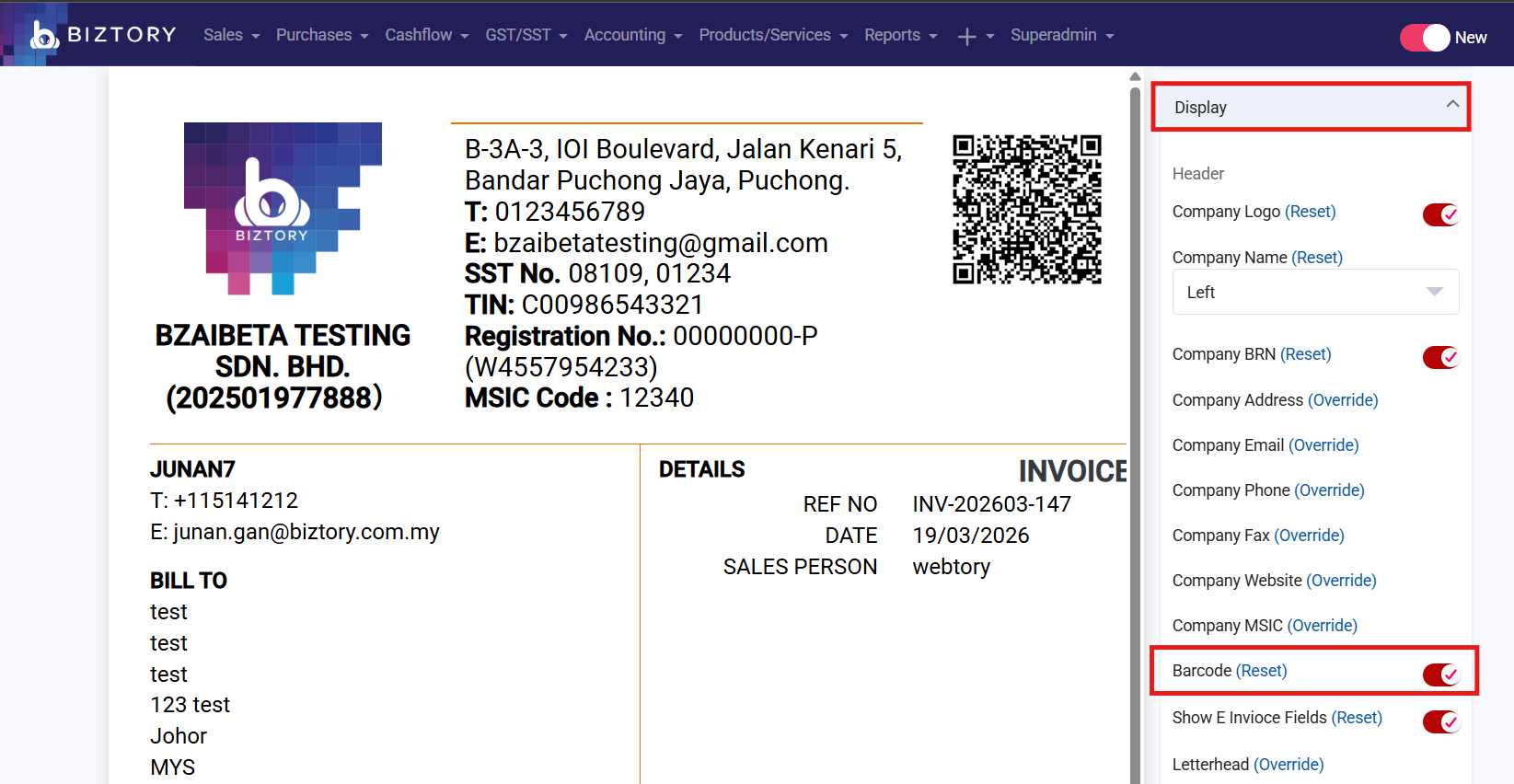
7. Click on Display and enable the Barcode setting.
8. The QR Code will appear in your Invoice and can be directly scanned to access the LHDN Public Portal.
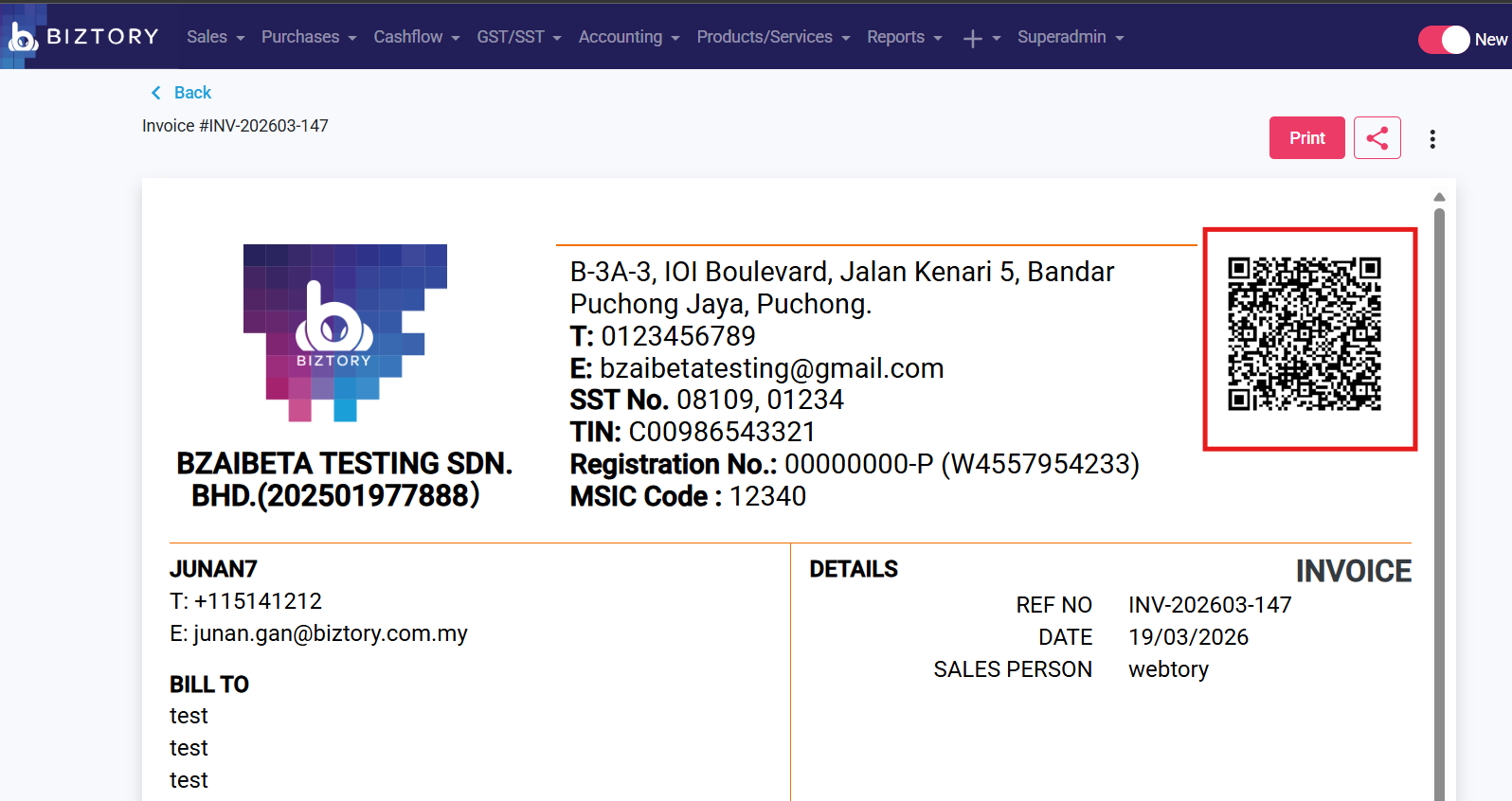
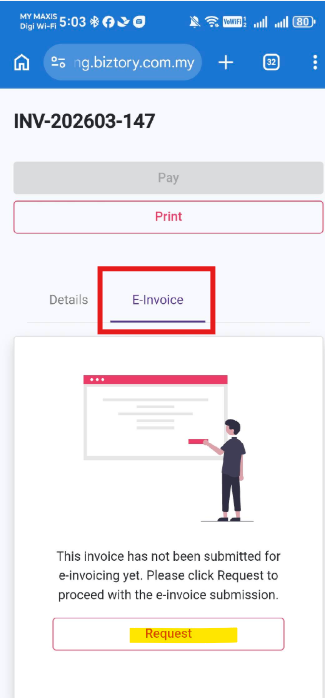
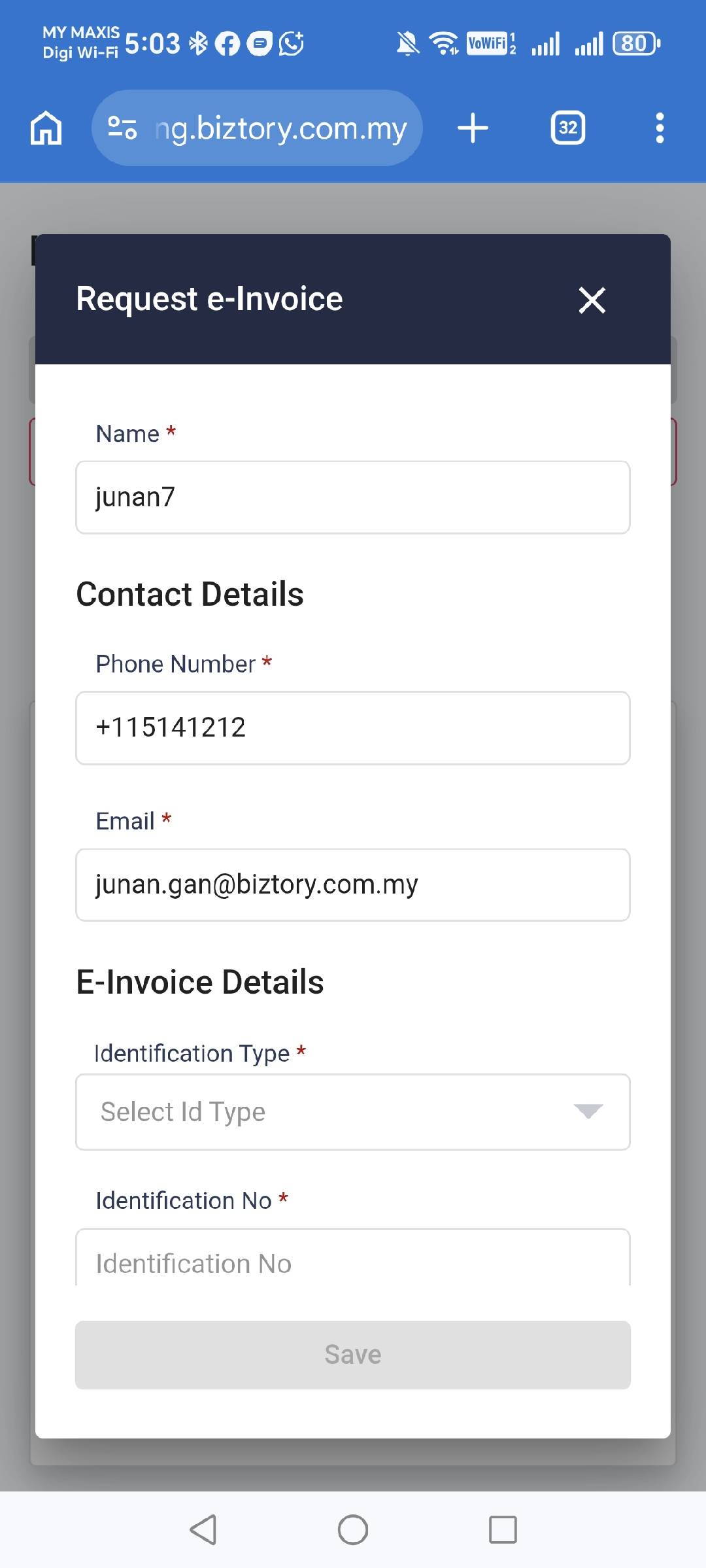
If the Invoice has not been submitted to E-Invoice, the QR Code will redirect to the guest view instead
(Note: Guest View will have the Invoice Details tab and E-Invoice tab, customers are able to request for e-invoice directly from the e-invoice tab)
Was this article helpful?
That’s Great!
Thank you for your feedback
Sorry! We couldn't be helpful
Thank you for your feedback
Feedback sent
We appreciate your effort and will try to fix the article