How to Add a Supplier Additional Field(New Ver)
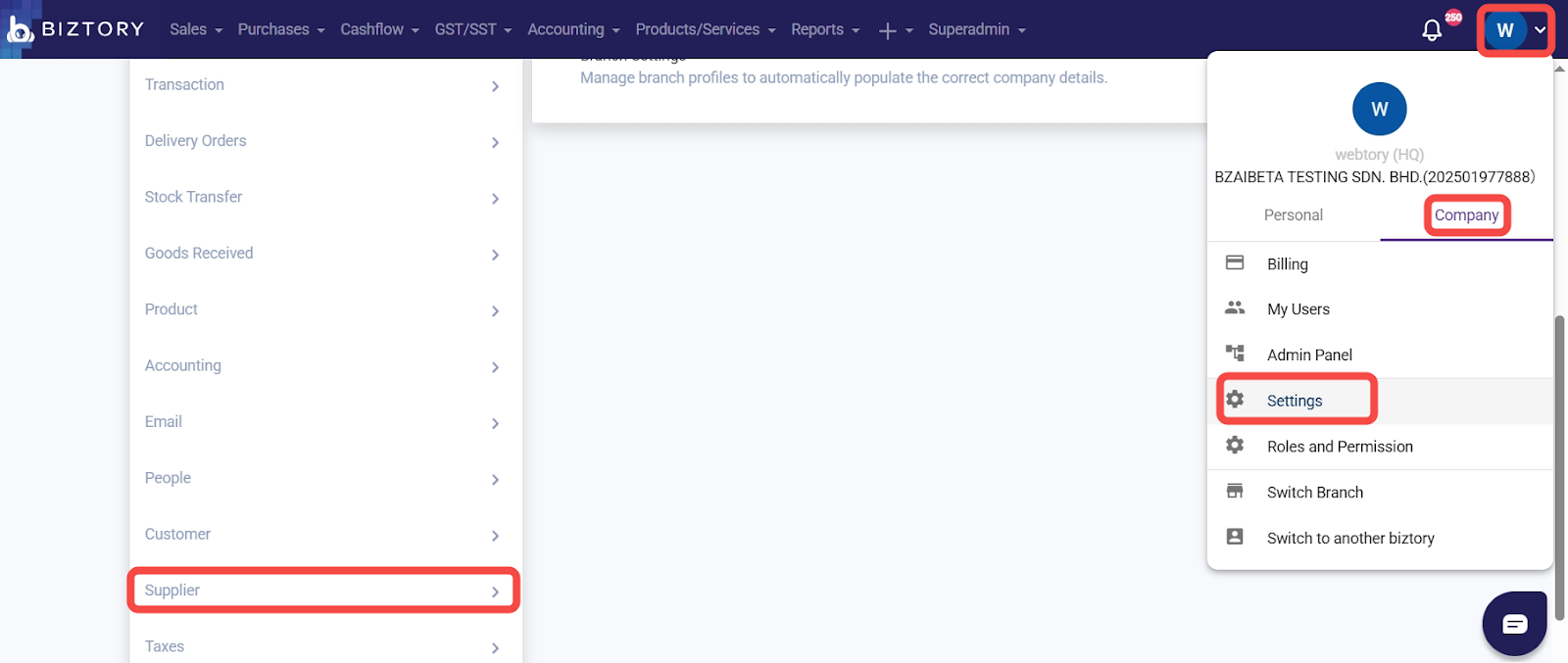
Go to Profile Icon > Company > Setting > Supplier.
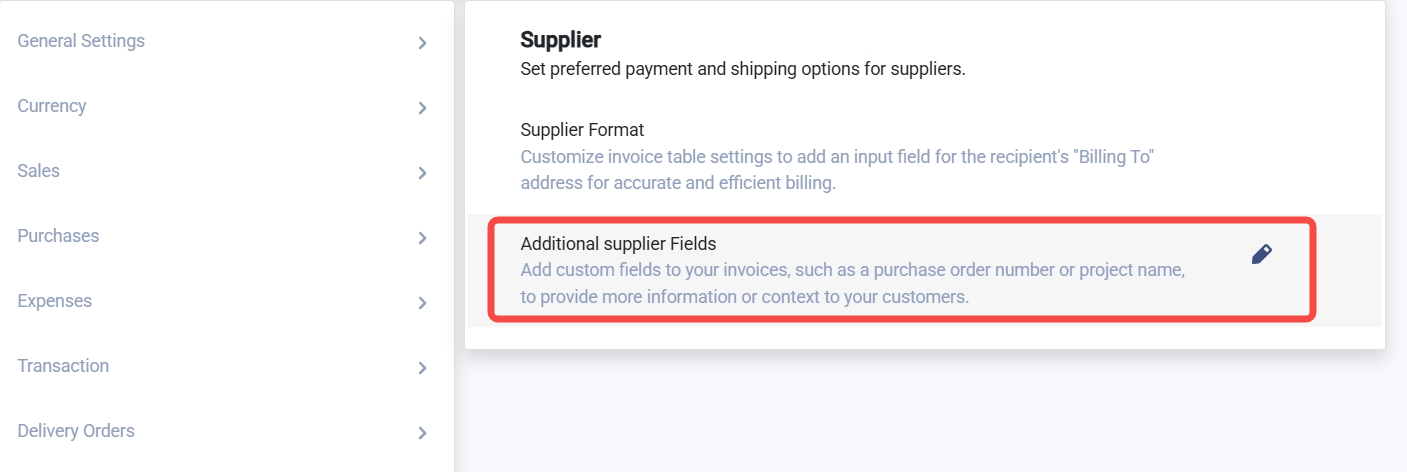
Click on Additional Supplier Fields.
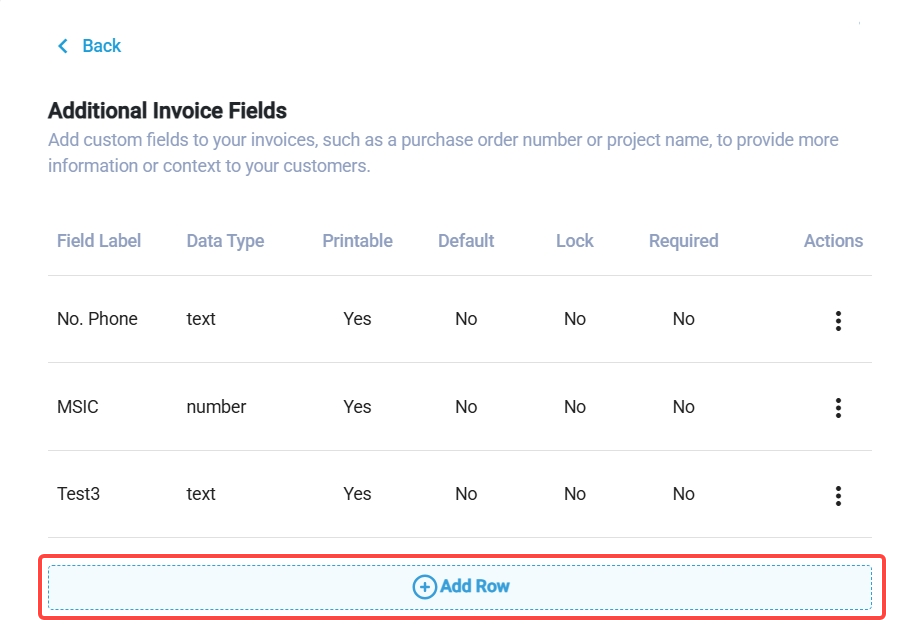
Click Add Row.
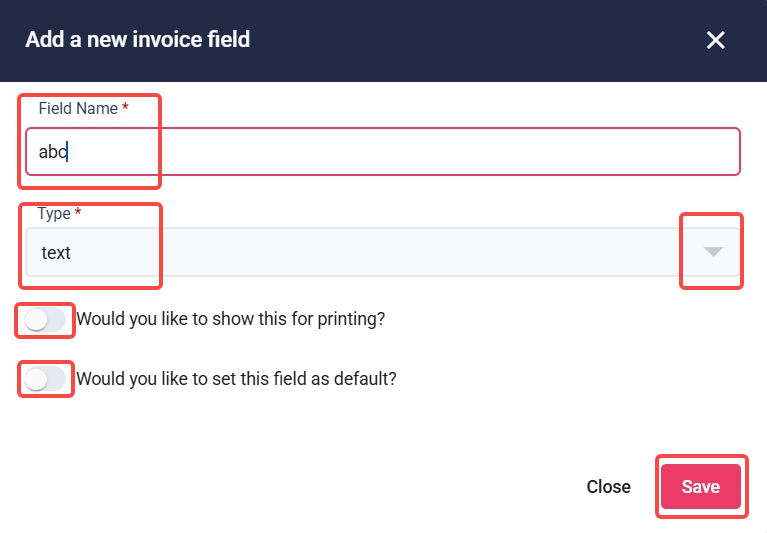
Fill in the Field Name (e.g., Remark, Additional Phone Number, etc.), choose the type (text, dropdown, date, number), and then click Save.
Toggle ‘Would you like to show this for printing’ if you want it to appear on printed documents.
Toggle ‘Would you like to set this field as default’ if you want this field to be enabled by default.
Go to Purchase > Supplier.
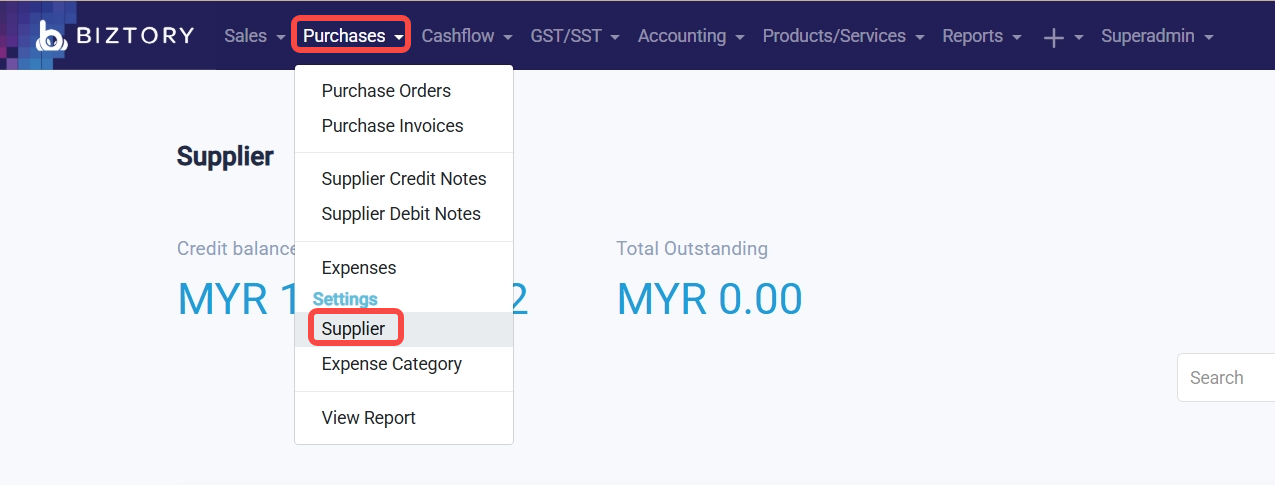
Click the supplier’s username.

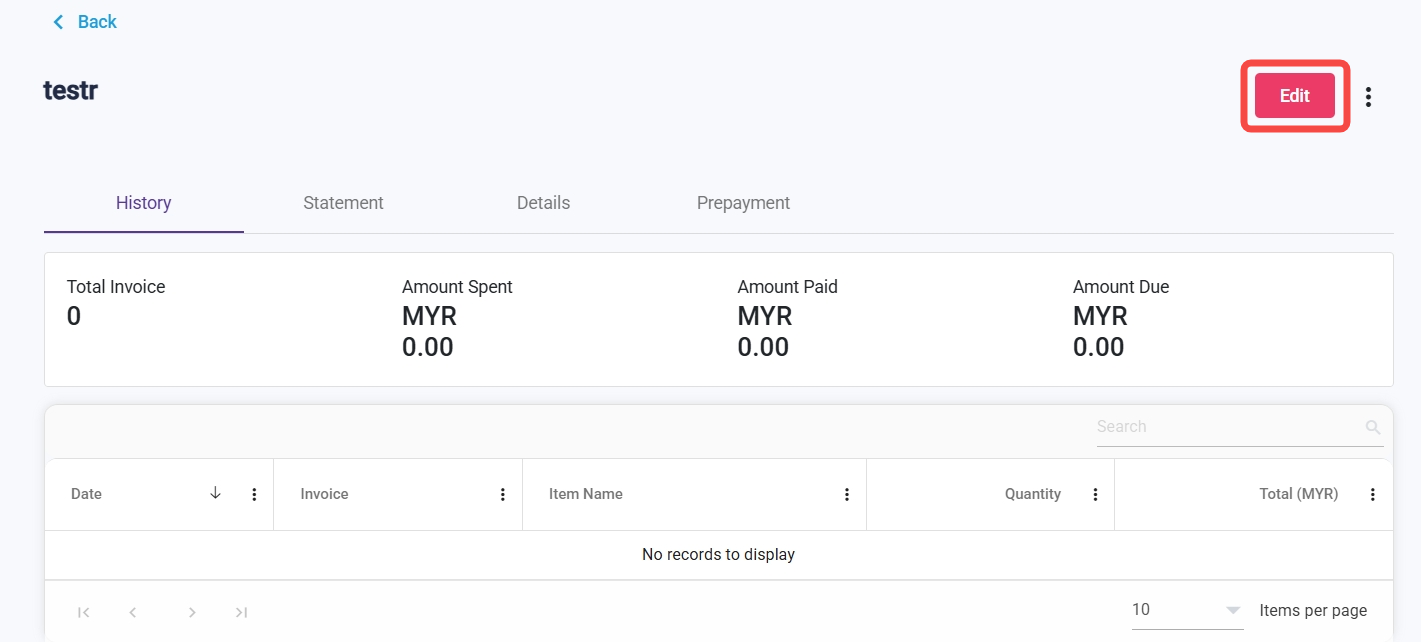
Click Edit.
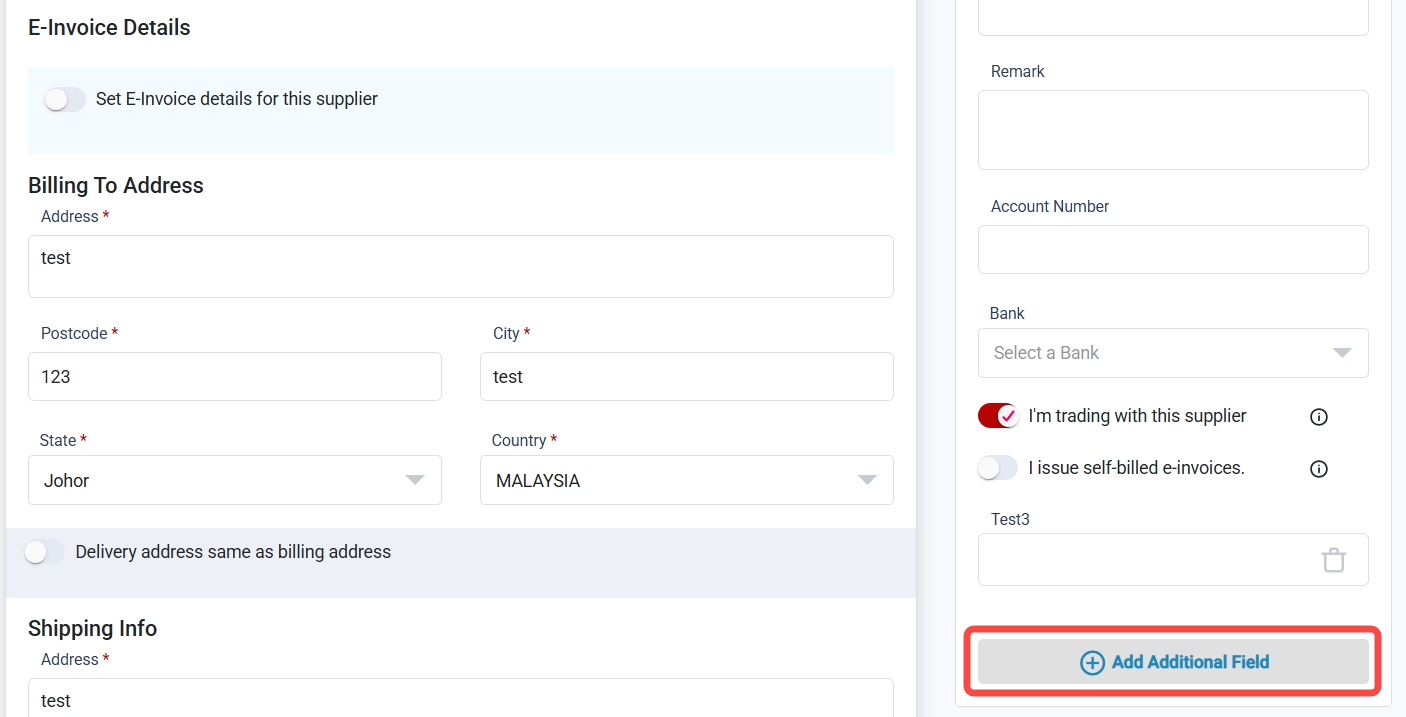
Add Additional Field.
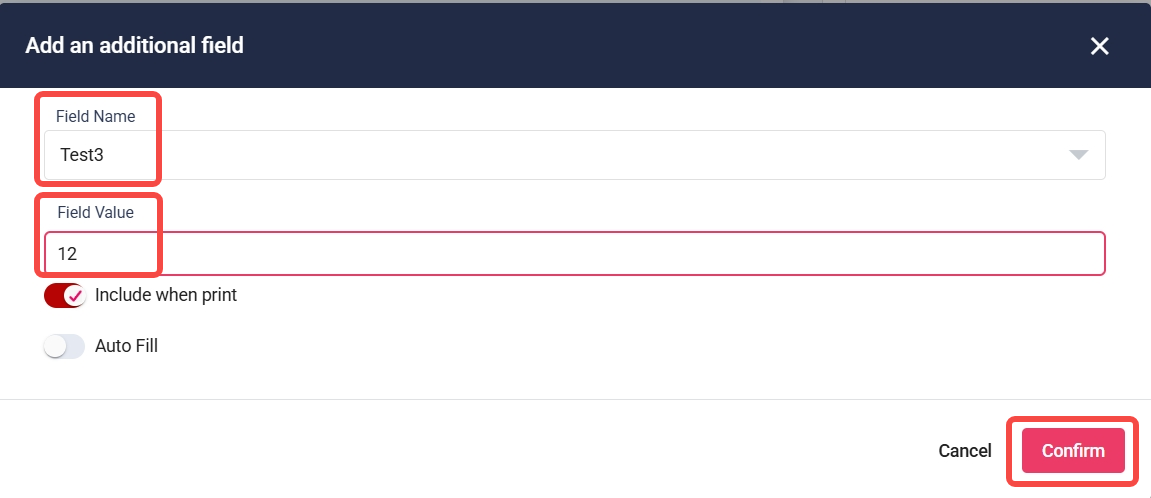
Enter the Field Name and Field Value, and click Confirm.
Toggle ‘Include when print’ to decide whether this field should appear on printed documents.
Toggle ‘Auto Fill’ to decide whether this field should be automatically filled by default.
Was this article helpful?
That’s Great!
Thank you for your feedback
Sorry! We couldn't be helpful
Thank you for your feedback
Feedback sent
We appreciate your effort and will try to fix the article