What Is "Owner" & How to Use It (New Vers.)
The "Owner" feature in Biztory allows for better document management and security. By assigning ownership to records like invoices and quotations, you can control who has access to view or edit specific data. This ensures that users only see the documents they are responsible for unless sharing permissions are granted.
Learn How To:
- Understand the "Owner" field logic
- Access User Settings
- Enable Document Sharing between users
- Set default sharing views
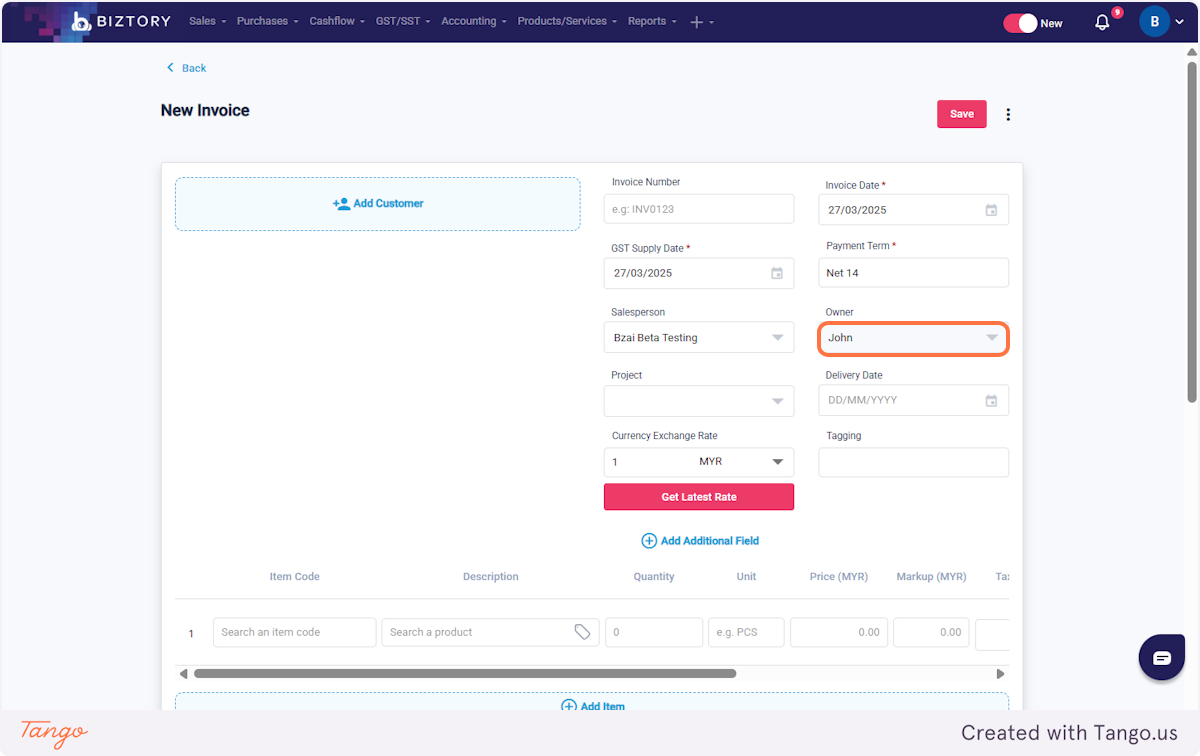
1. If document sharing is disabled, users can only view their own documents by selecting the "Owner" option, unless they have the Admin role or User Sharing is enabled.
(If left blank, it will automatically be assigned to the currently logged-in user.)
2. Click on My Users

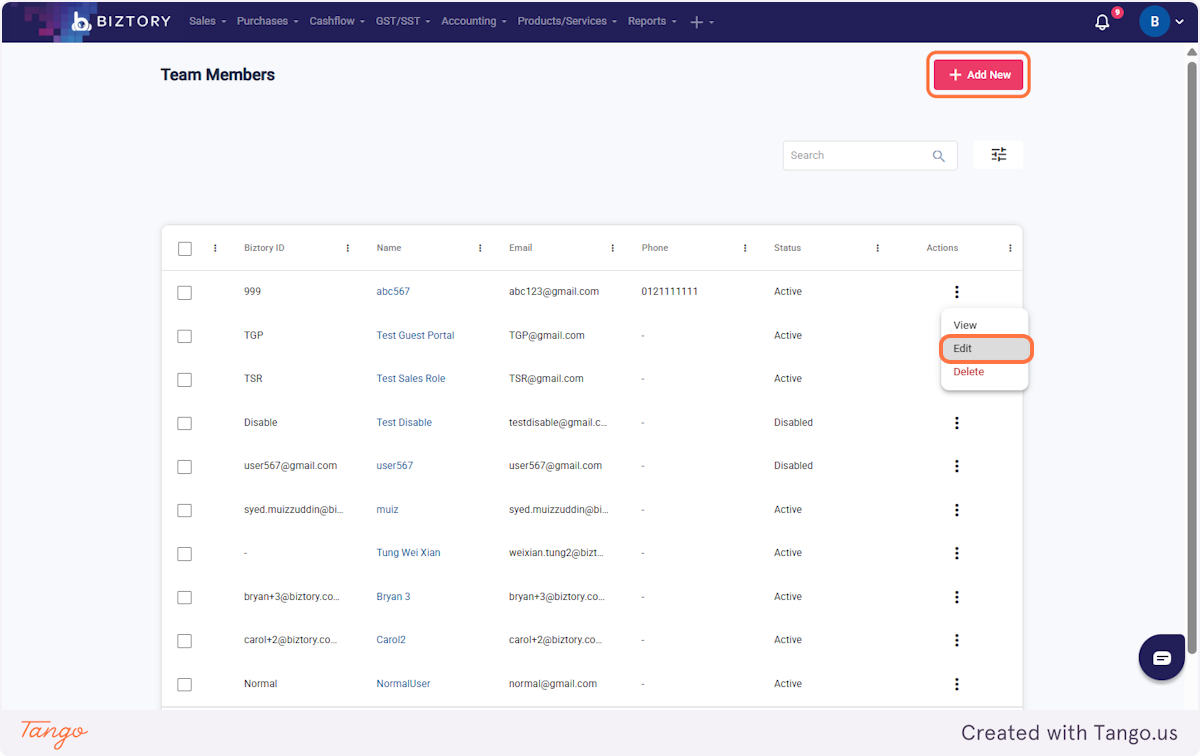
3. Click on Edit or Add New
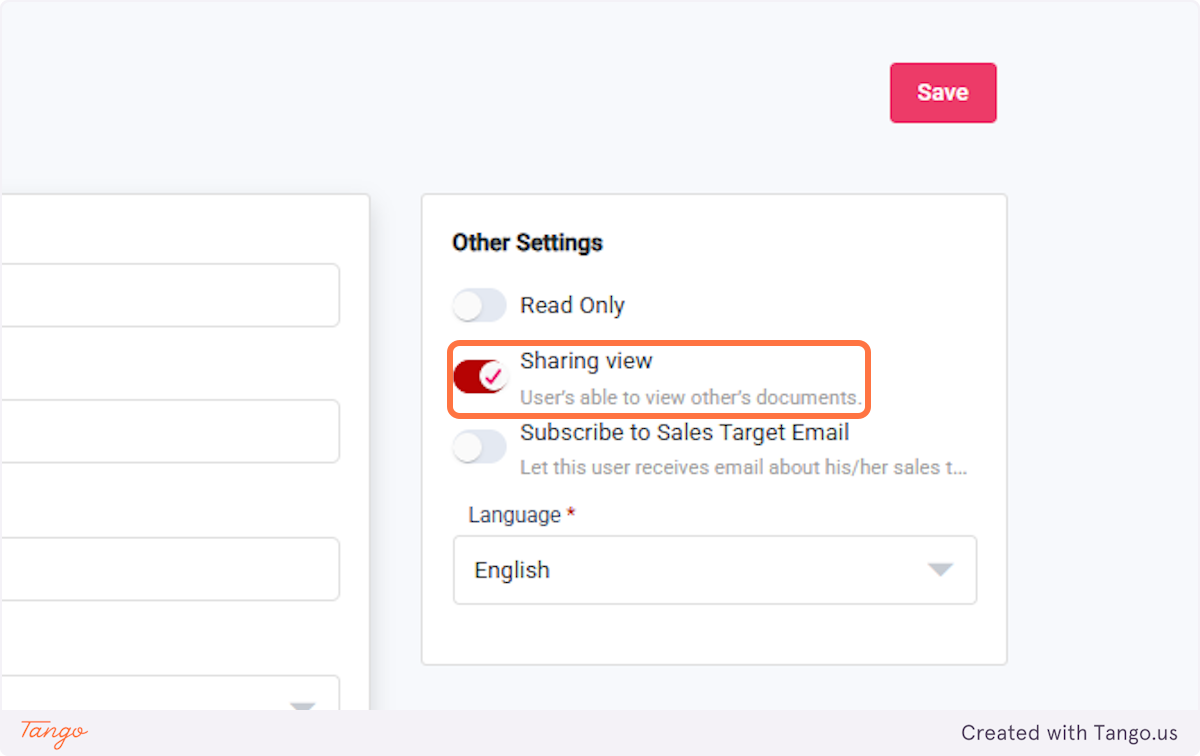
4. Enable "Sharing View" to allow users to access documents created by others.
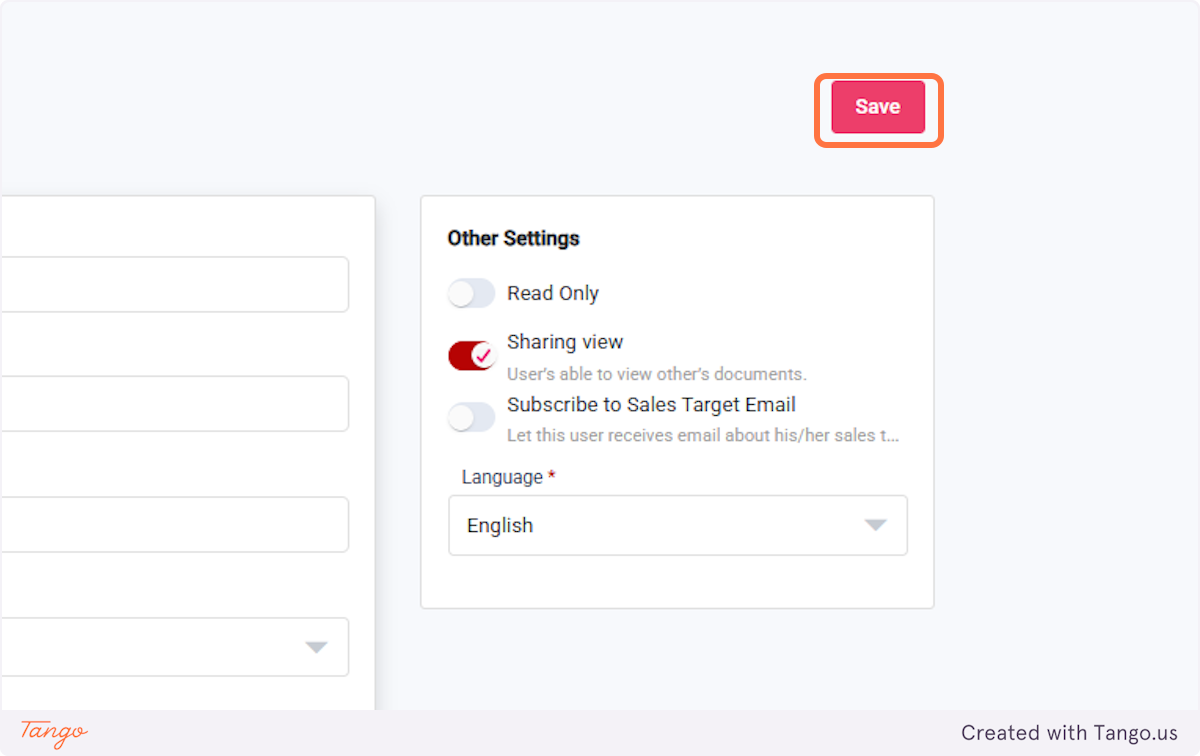
5. Click on Save
2. How to Enable Sharing Between Users
If you want your team members to collaborate or view each other's documents, you need to adjust the user settings.
Step 1: Go to Profile > Company > Settings.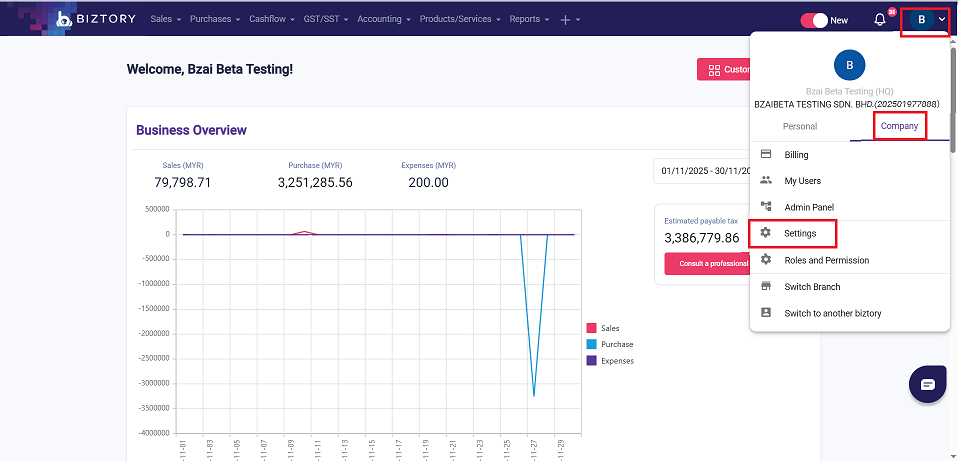
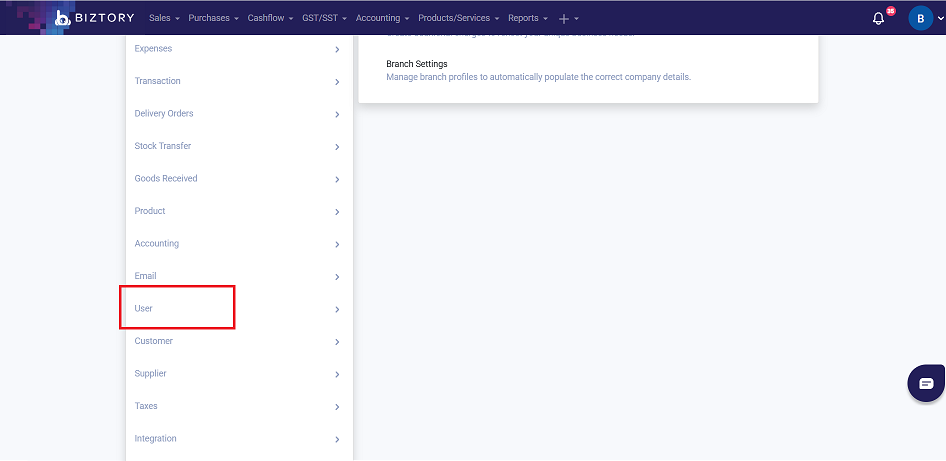
Step 2: Click on Users from the sidebar menu.
Step 4: Navigate to the User Setting / Preference section and look for Sharing View.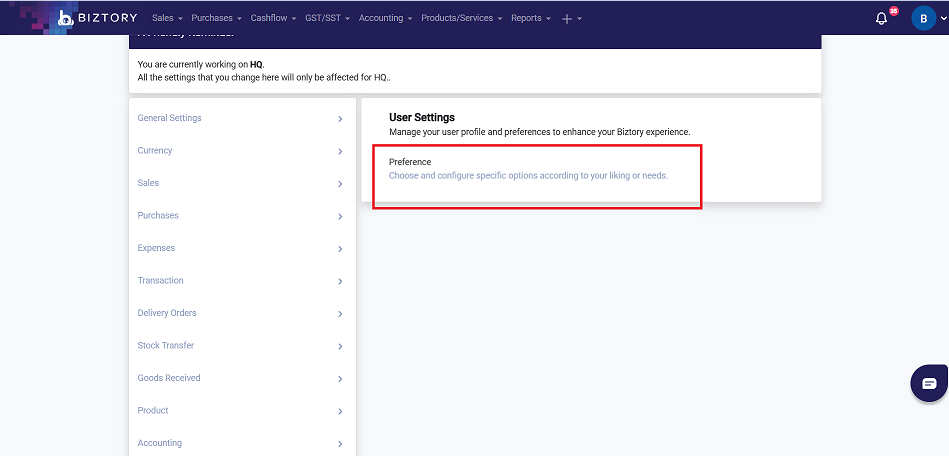
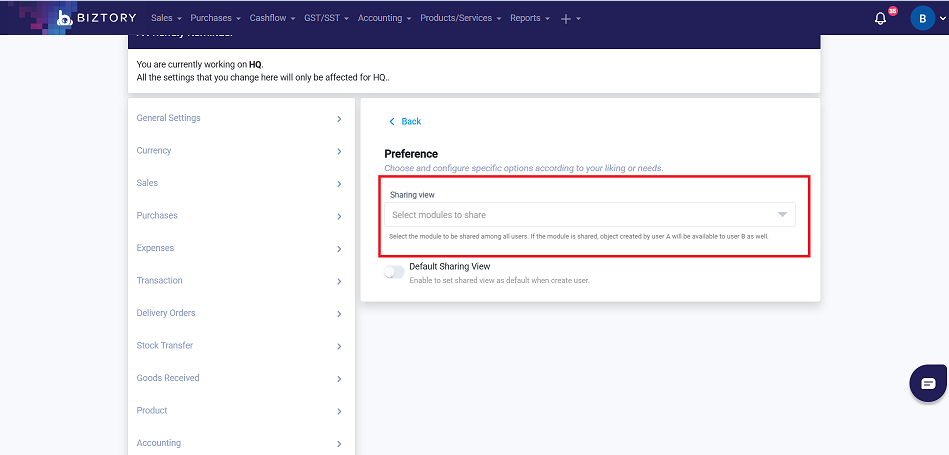
Step 5: Enable "Sharing View" by checking the box. This allows this specific user to access documents created or owned by others. (eg: Customer - other users will be able to see the customer list created by the Owner). 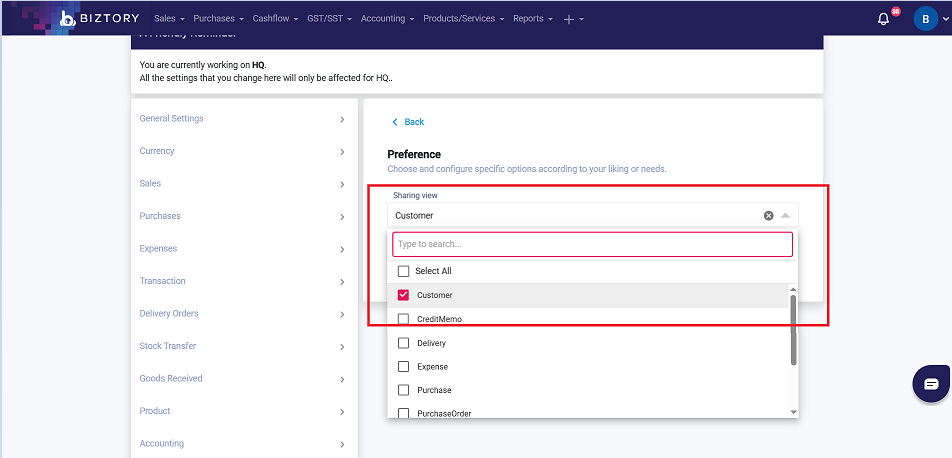
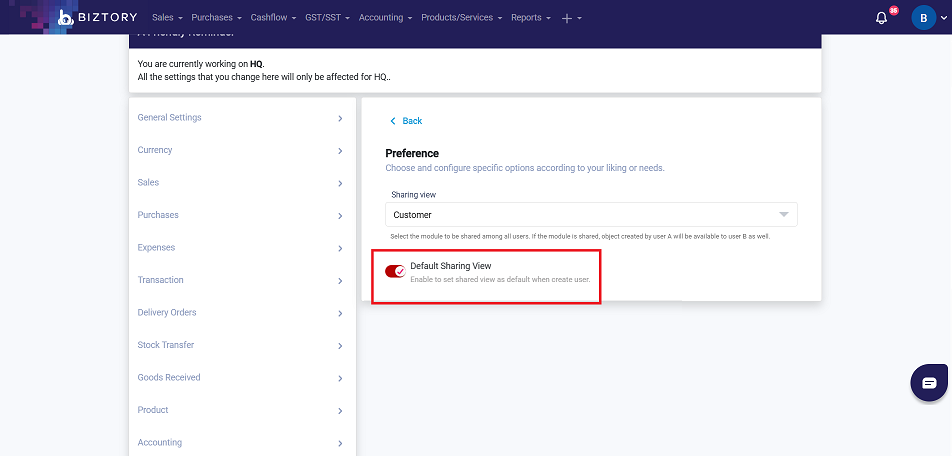
Step 6: (Optional) Enable Default Sharing View if you want this shared access to be the standard setting whenever you create new users in the future.
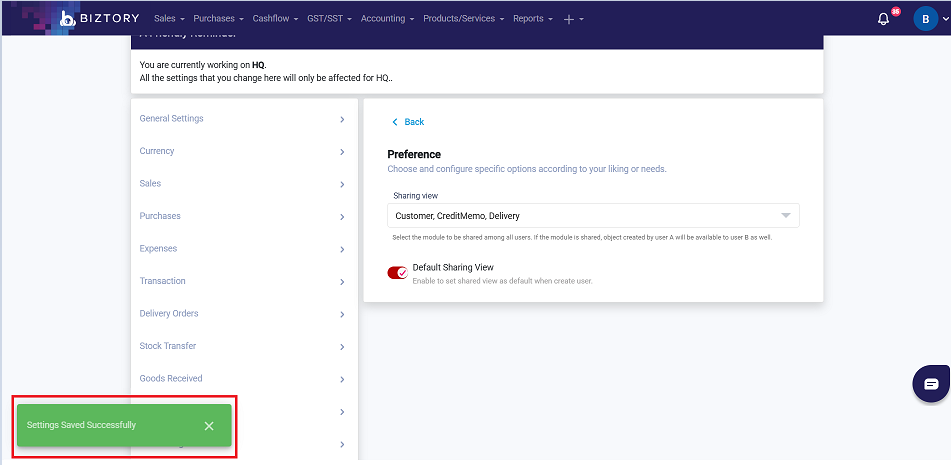
Step 7: Wait for the system to update until you see the green notification "Setting Saved Successfully".
You’re All Set! By managing the "Owner" and "Sharing View" settings, you can ensure your team has exactly the right level of access to your company's documents, maintaining both security and efficiency.
Was this article helpful?
That’s Great!
Thank you for your feedback
Sorry! We couldn't be helpful
Thank you for your feedback
Feedback sent
We appreciate your effort and will try to fix the article