- Export data from Kakitangan Payroll Summary
Download the payroll report from your Kakitangan system.
- Go to Biztory system
Navigate to: 3rd Party Apps > Kakitangan
Then tick/select the Kakitangan option.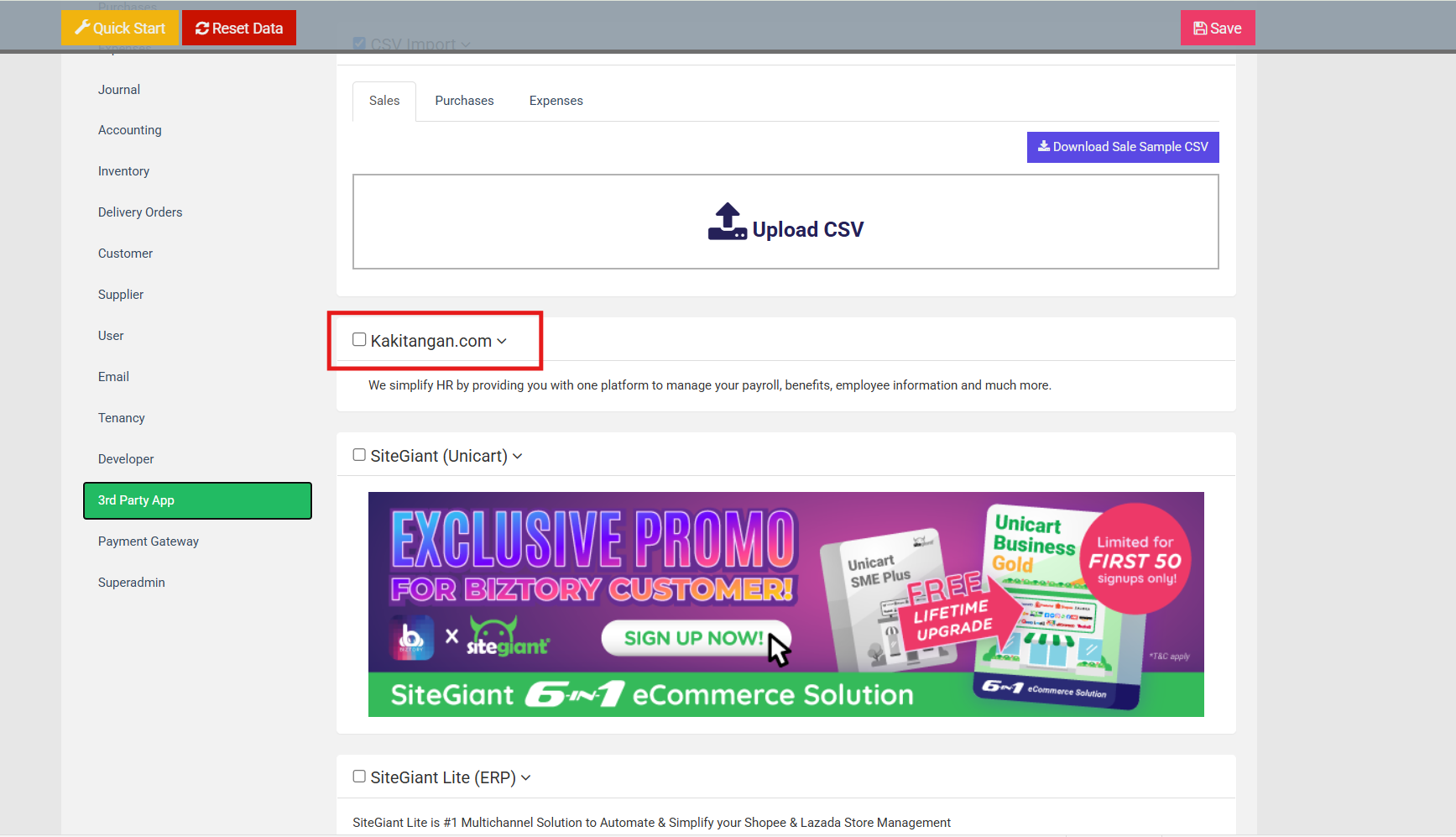
- Import file
Upload the CSV file exported from Kakitangan into the system.
- Match payroll category
You will see a list of payroll categories.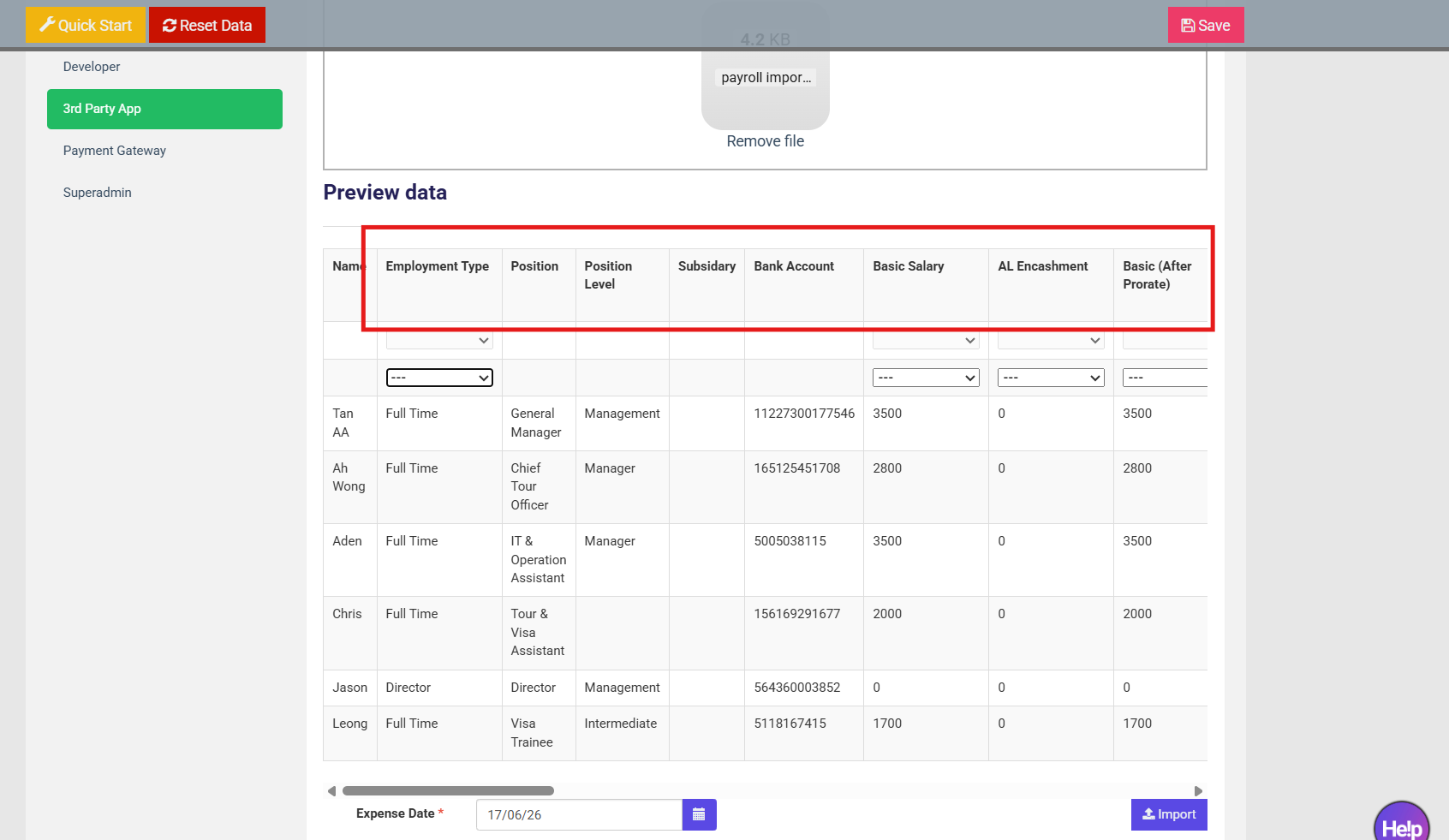
- For each category, choose the correct Account Code you want to link it to in Biztory.
Example:
Payroll Category: Basic Salary → Account Code: Salary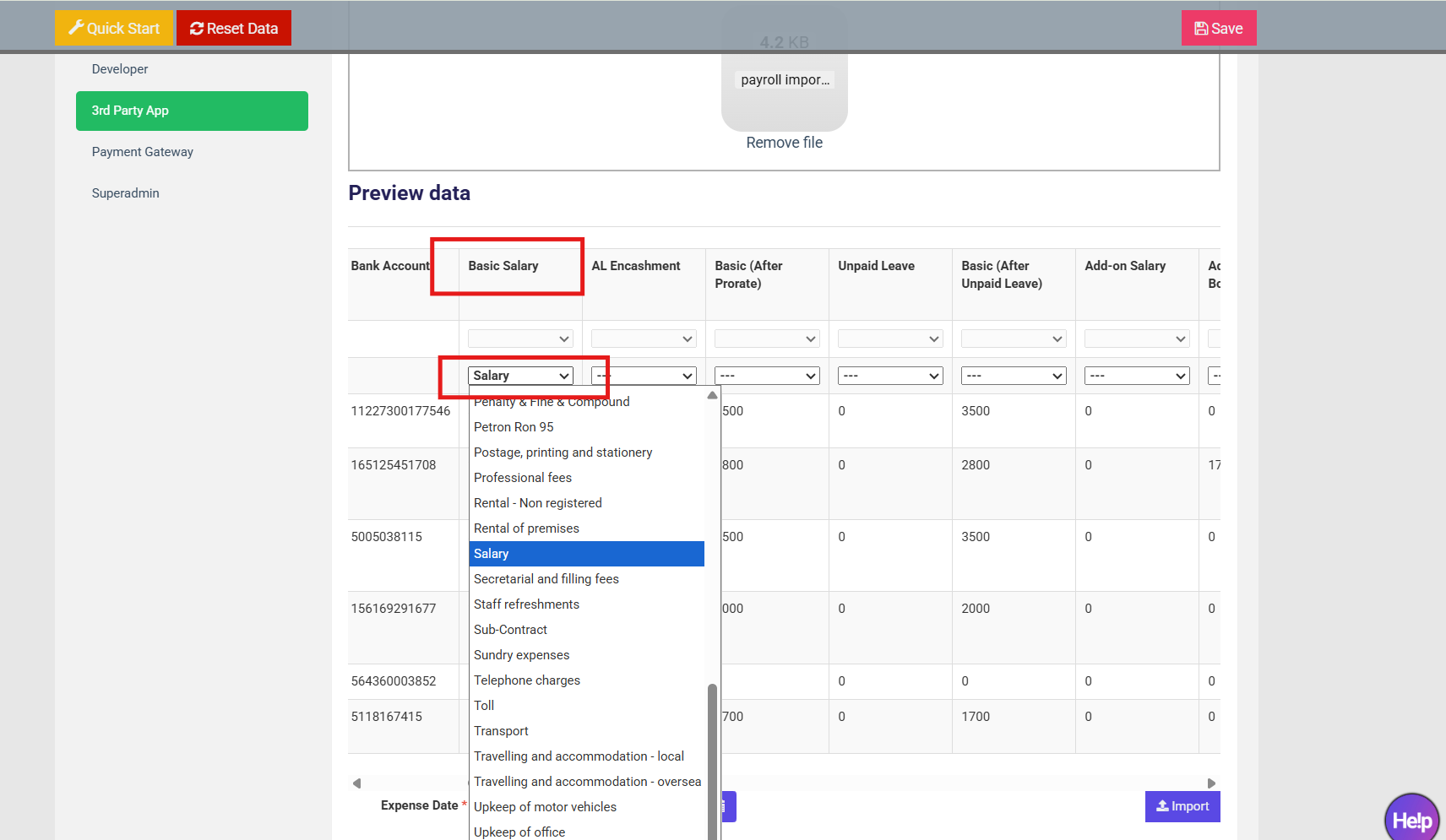
Payroll Category: Petrol Allowance → Account Code: Petrol (RON95)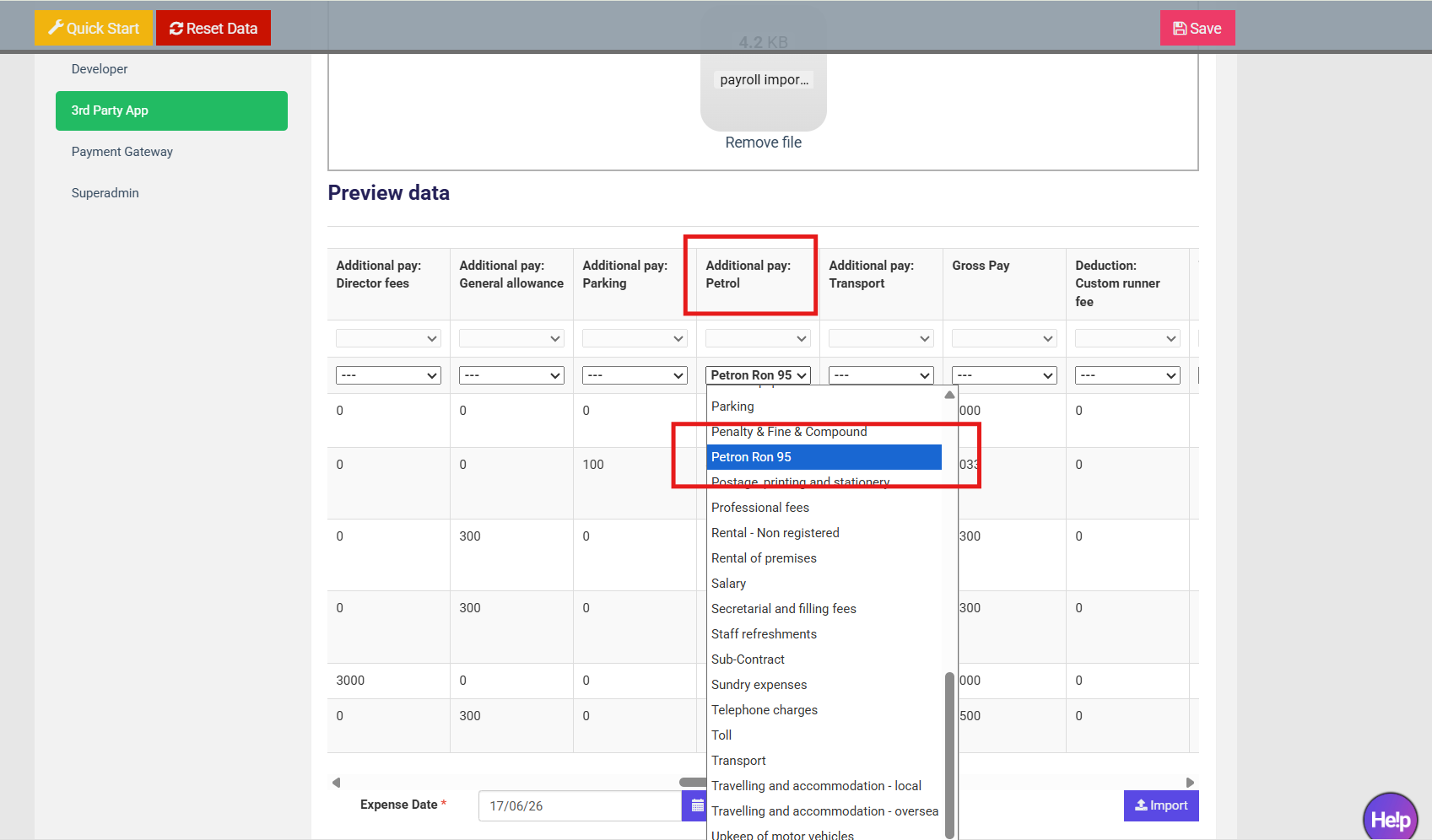
- Set Debit / Credit (if needed)For each category, choose:
Debit → Money added into salary (company expense)
Credit → Money deducted from salary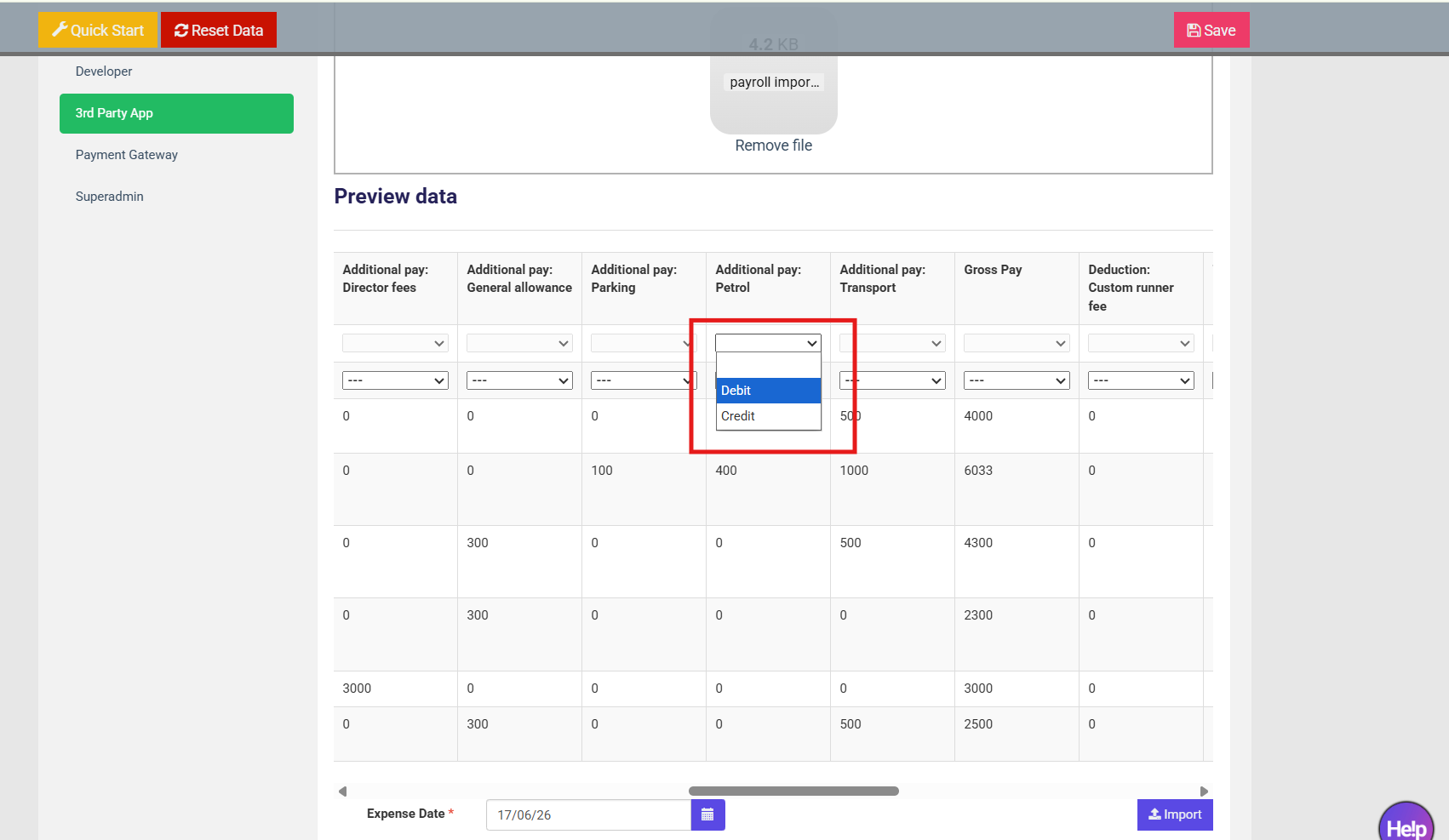
- If not needed in expenses
If you do NOT want a payroll category to appear in expenses, leave it blank (no Account Code, no Debit/Credit).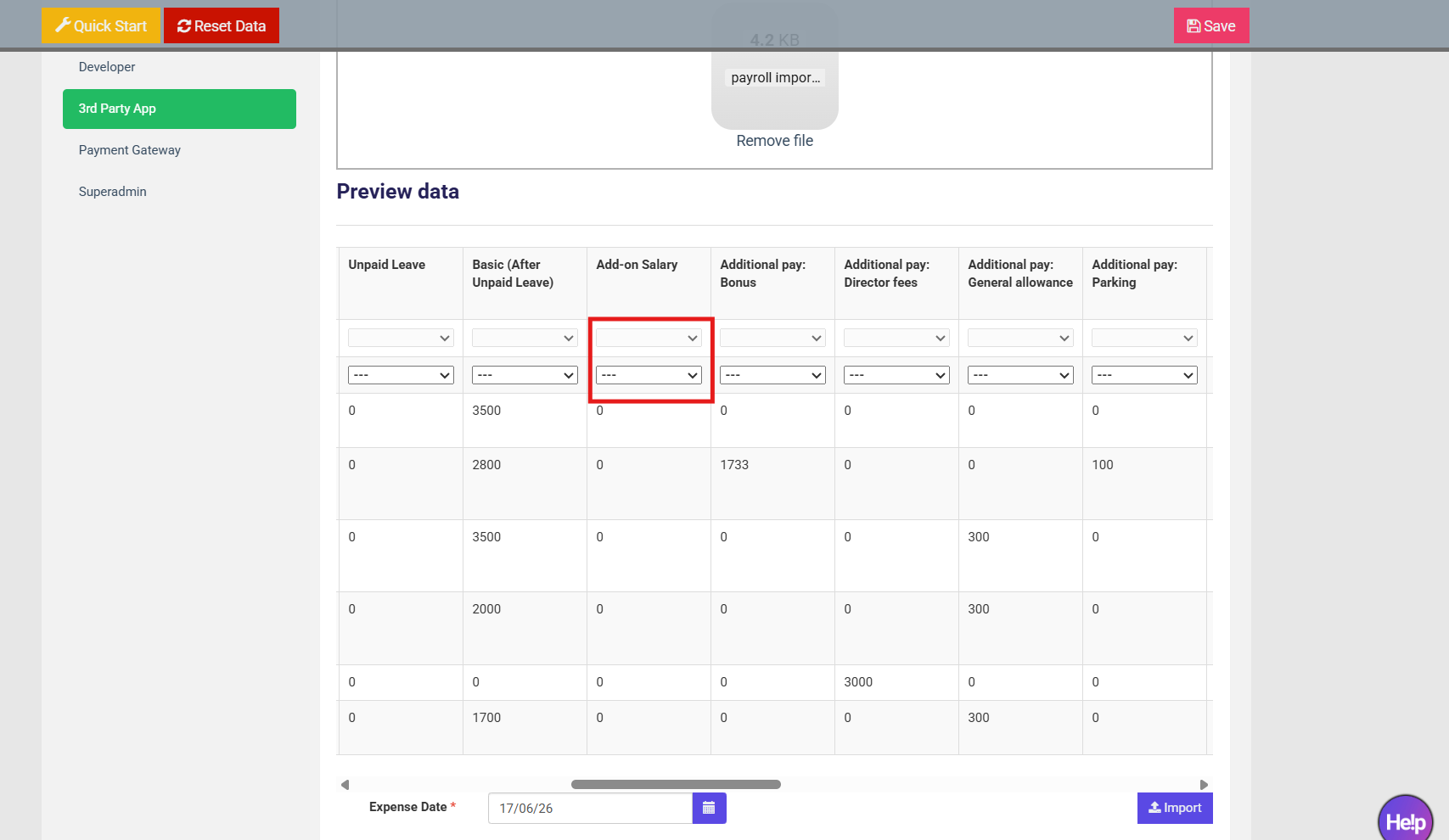
If you accidentally selected something, you can reset it back to blank by choosing “--”.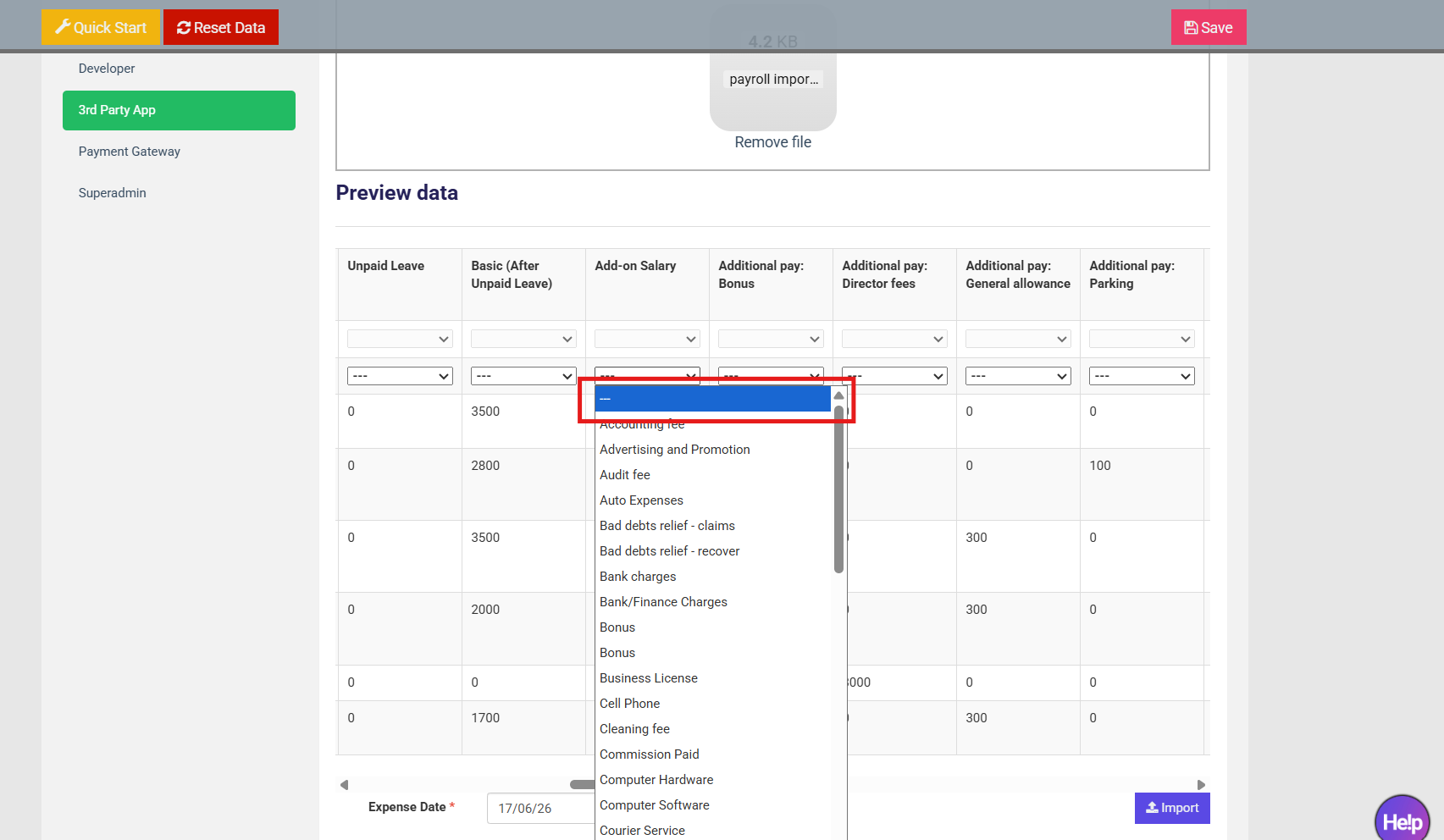
(Note: Any category without Account Code will NOT appear in the expense records.) - Select date
Choose the date for the expenses record based on your preference.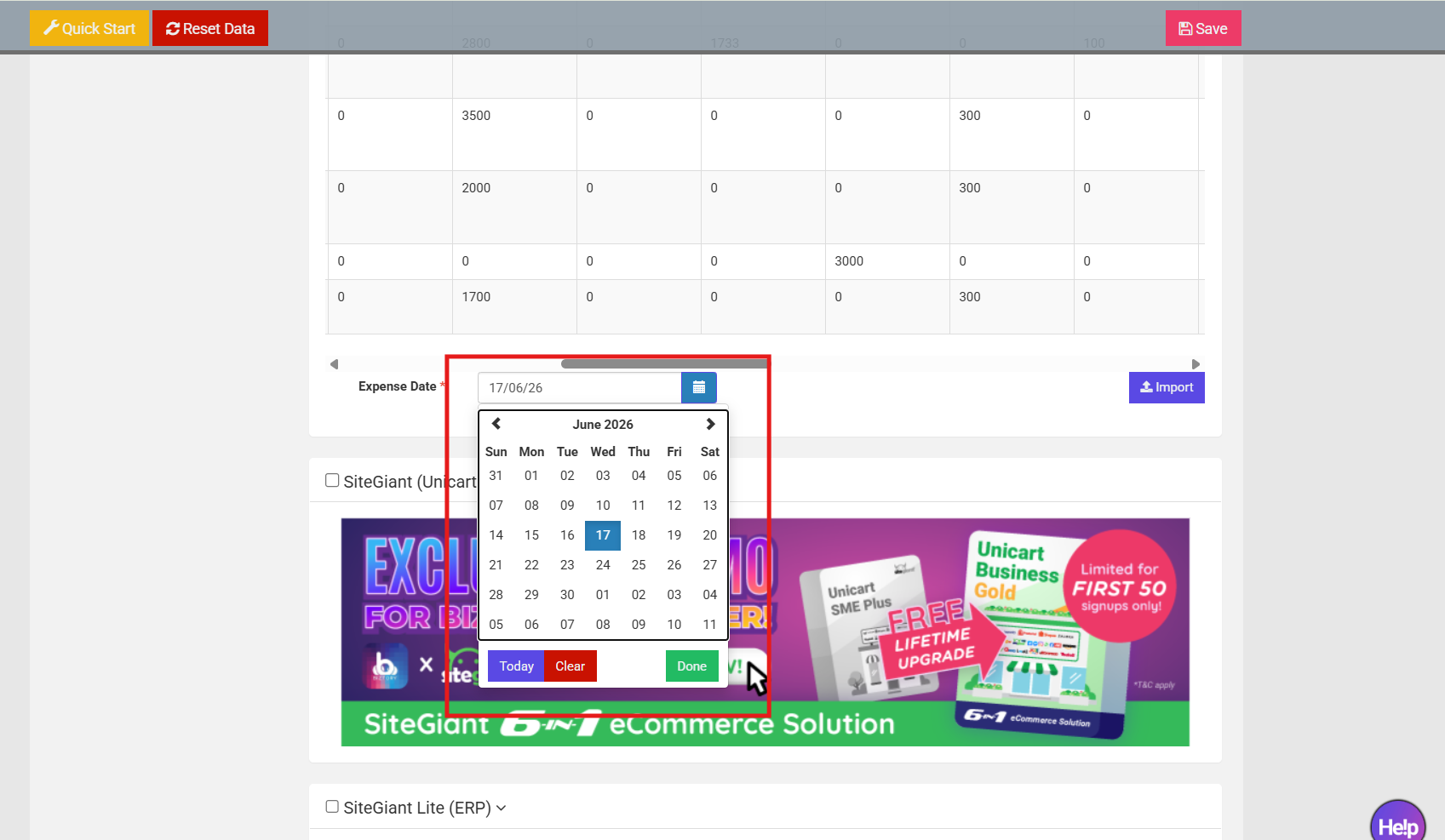
- Import data
Click “Import” once everything is filled in correctly.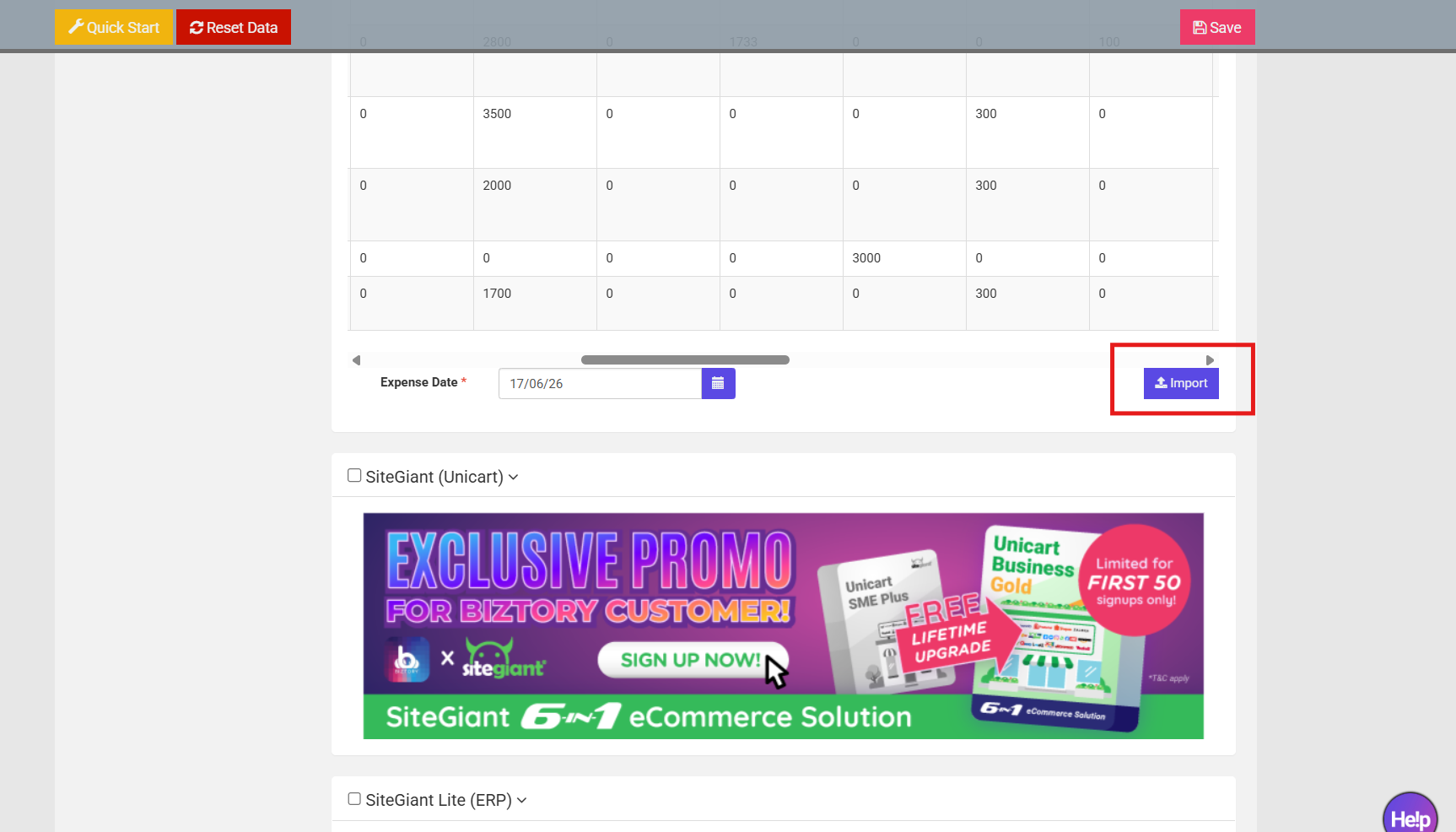
10. Wait and check
Wait a few minutes for the system to process.
Then refresh the page and check under the Expenses module to see the imported payroll records.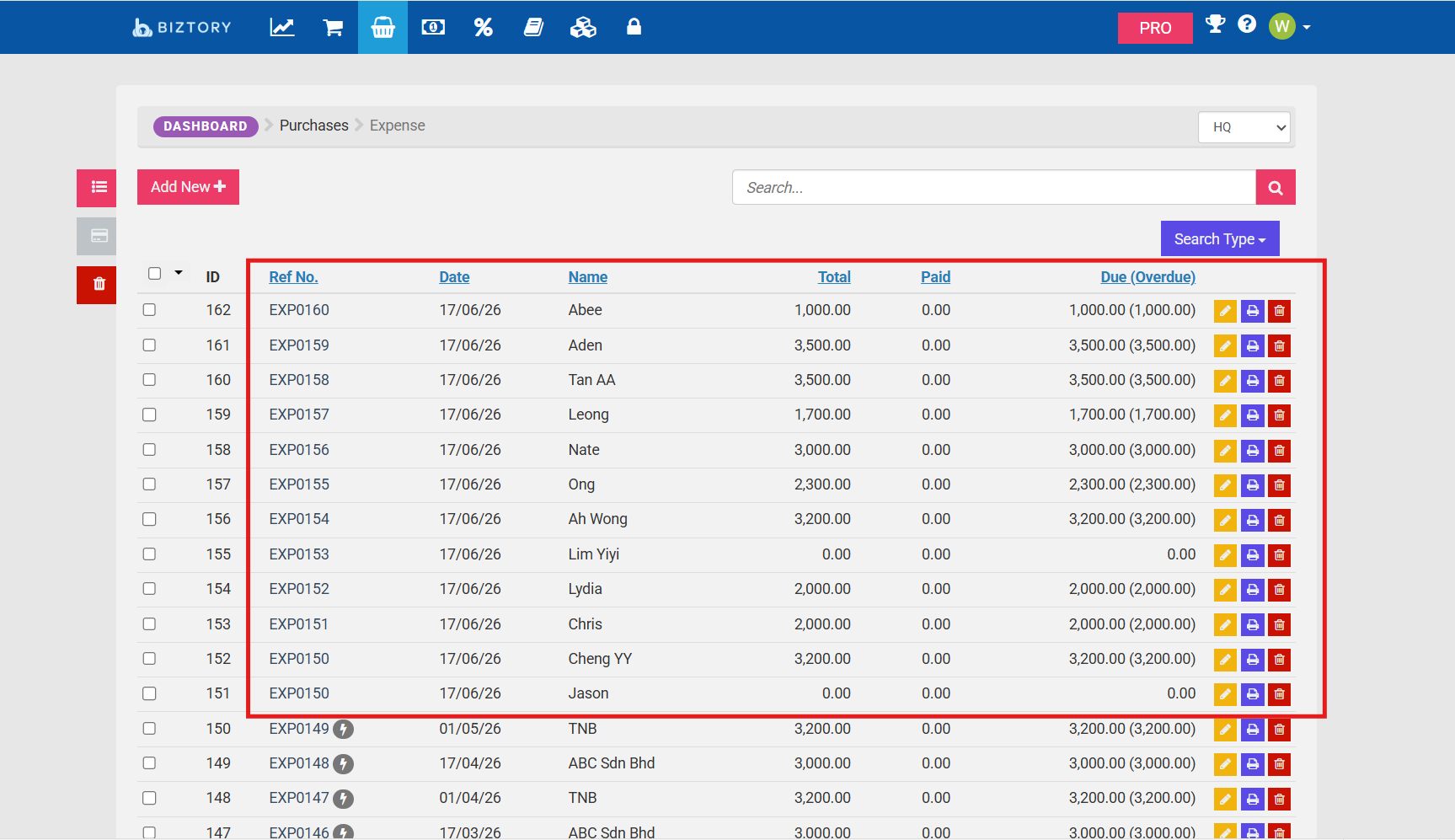
Was this article helpful?
That’s Great!
Thank you for your feedback
Sorry! We couldn't be helpful
Thank you for your feedback
Feedback sent
We appreciate your effort and will try to fix the article